Appearance
Using Windows
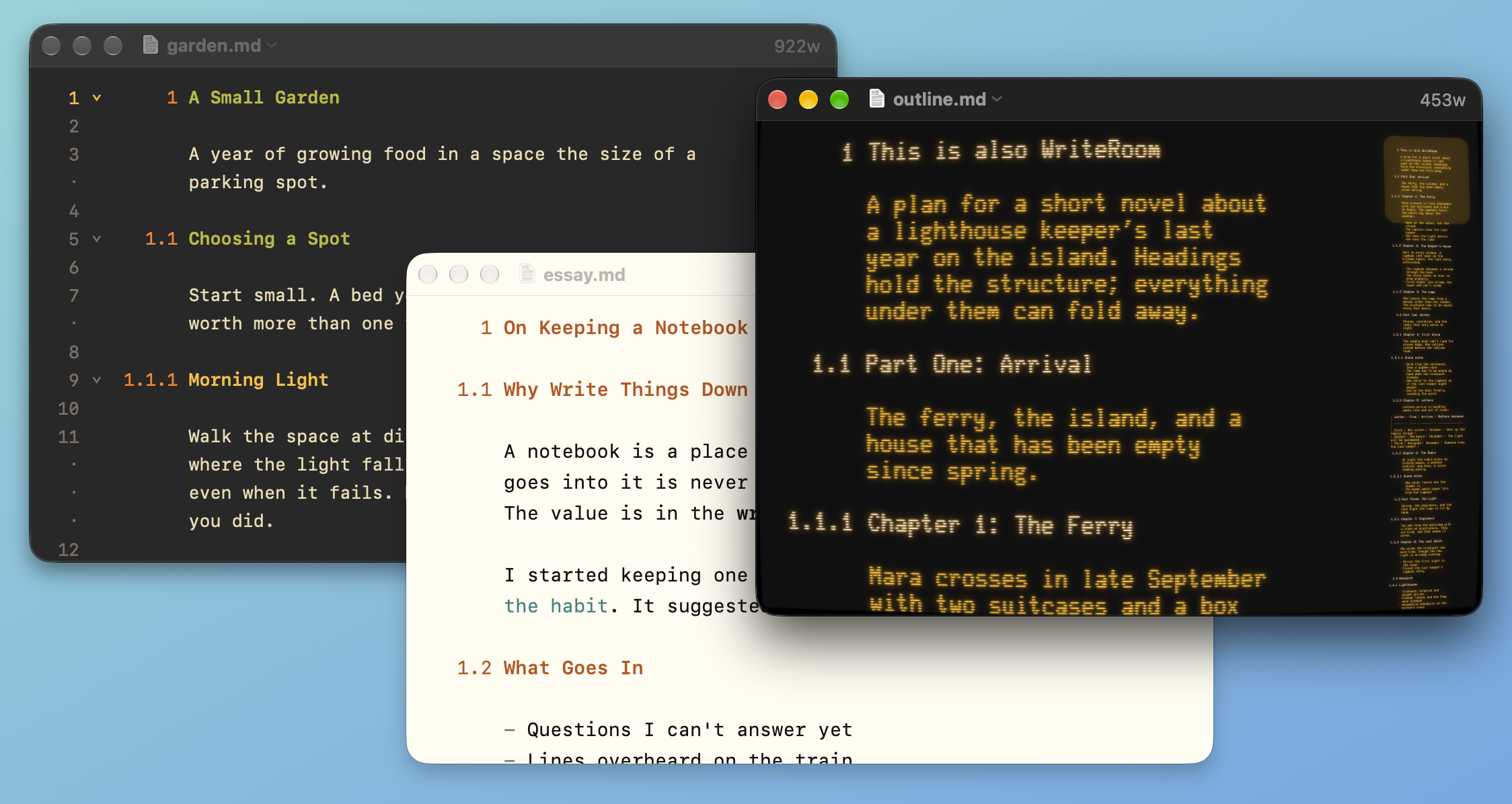
From macOS User Guide:
This Window Settings
Each window can have its own theme, line width, and View settings. Change them from the View menu, or click the count in the title bar and use This Window Settings. The popover stays open, so you can try several themes or widths and watch the window change.
To make a window follow Settings again
- Click the count, then click Reset beside This Window Settings
Reset also turns off Writing Focus, Typewriter, and Heading Overview modes, and closes a split.
Full Screen Mode
Full screen gives your document the whole screen.
To enter or exit full screen
- View > Enter Full Screen (Control-Command-F), and again to exit
- Or click the green window button
When you switch to another app and back, WriteRoom returns to the window you were using, even when it's full screen.
To always open documents in full screen
- Turn on WriteRoom > Settings > General > Open documents in full screen
Text Size
- View > Zoom In (Command-+)
- View > Zoom Out (Command--)
- View > Actual Size (Shift-Command-0)
Set the size for new windows with Font Size in Typography.
Line Numbers & Minimap
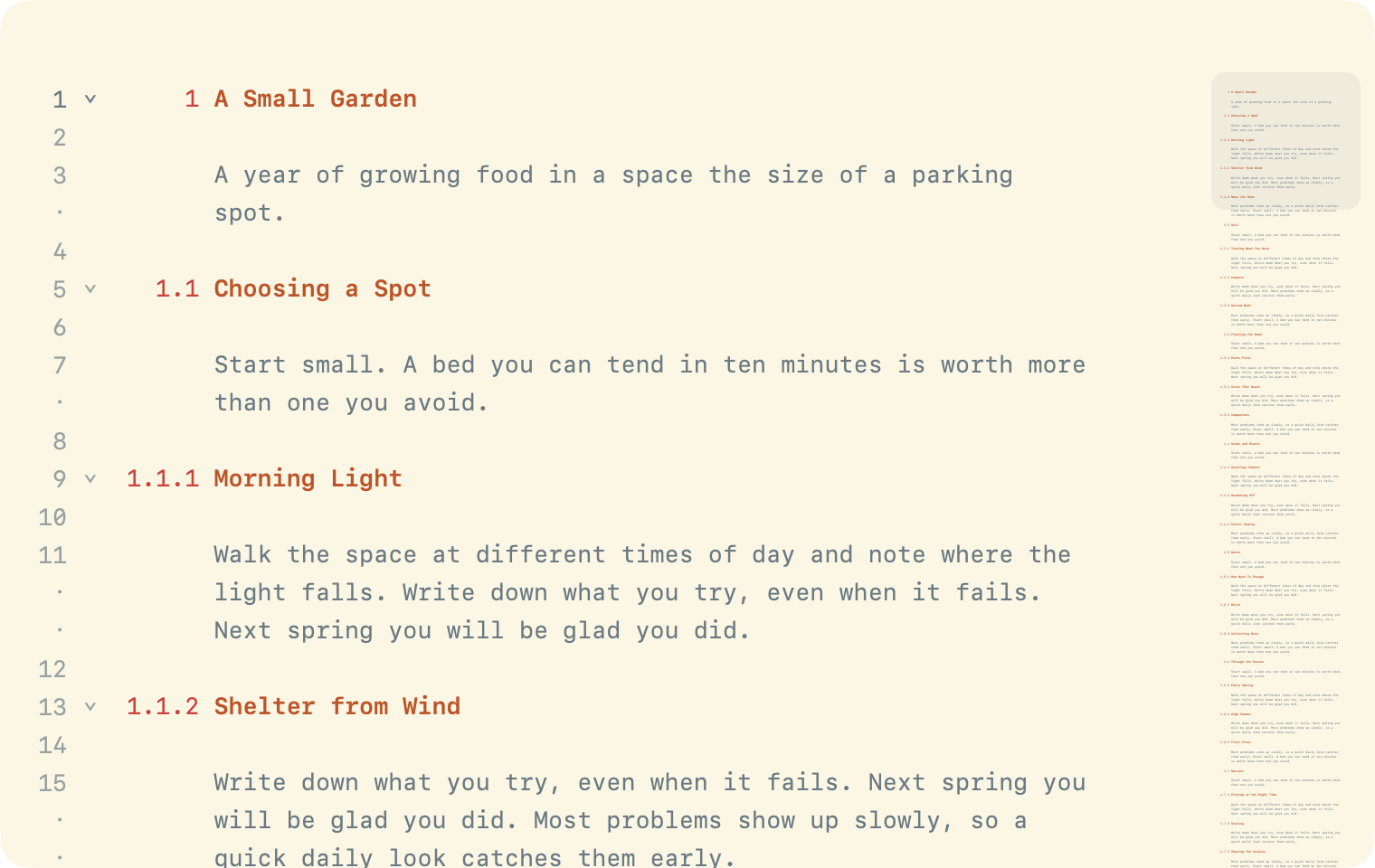
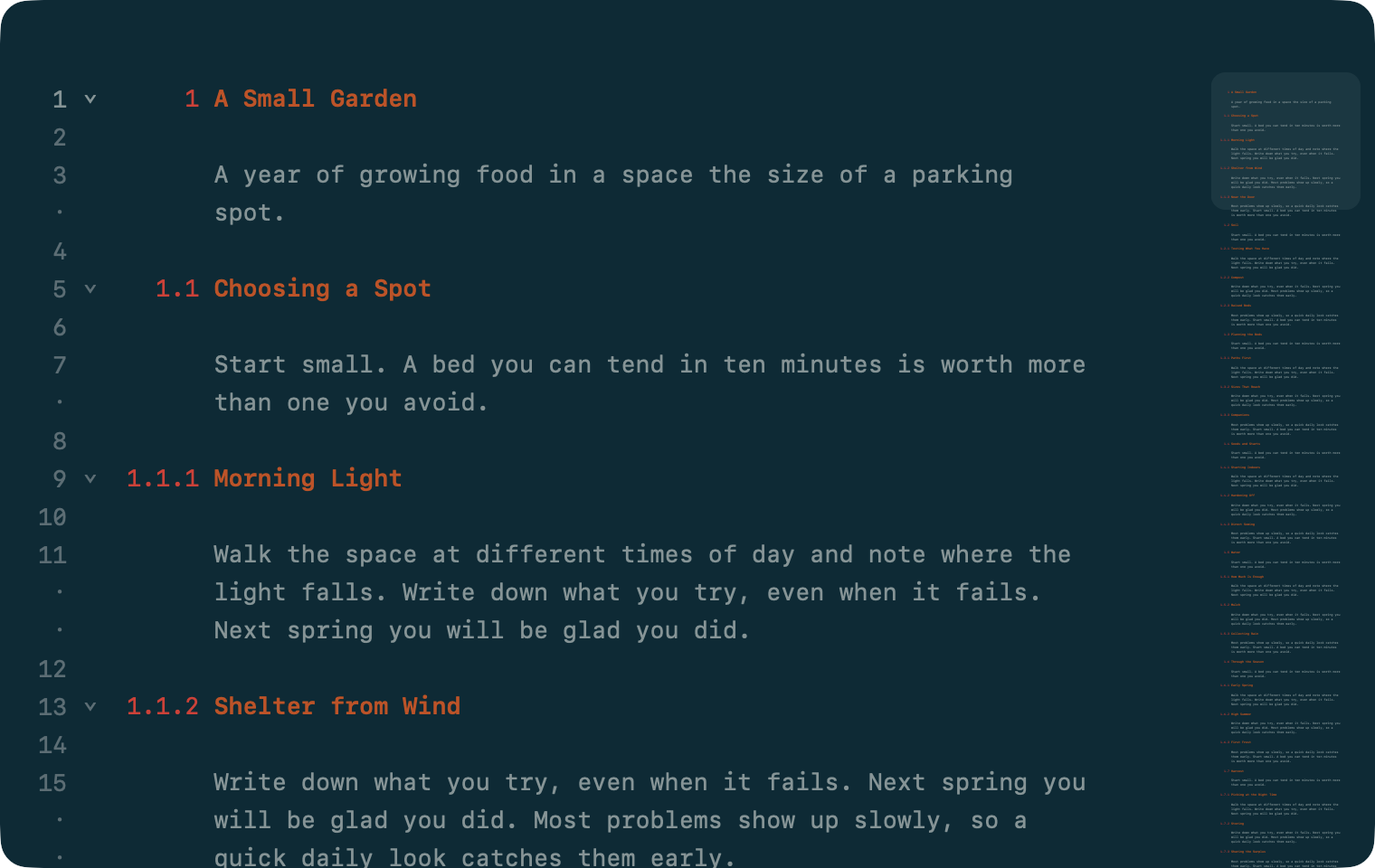
- View > Line Numbers (Control-Command-N) shows line numbers beside your text
- View > Minimap Scroller (Control-Command-M) replaces the scroll bar with a small picture of your whole document. Drag in it to scroll.
Set defaults in WriteRoom > Settings > General.
Tabs and Windows
- View > Show Tab Bar to see tabs, then drag documents between them
- View > Show All Tabs (Shift-Command-\) to see every tab at once
- File > Open in New Tab or Open in New Window for a second view
- Press Command-` to cycle through windows, full screen ones too