Appearance
Getting Started
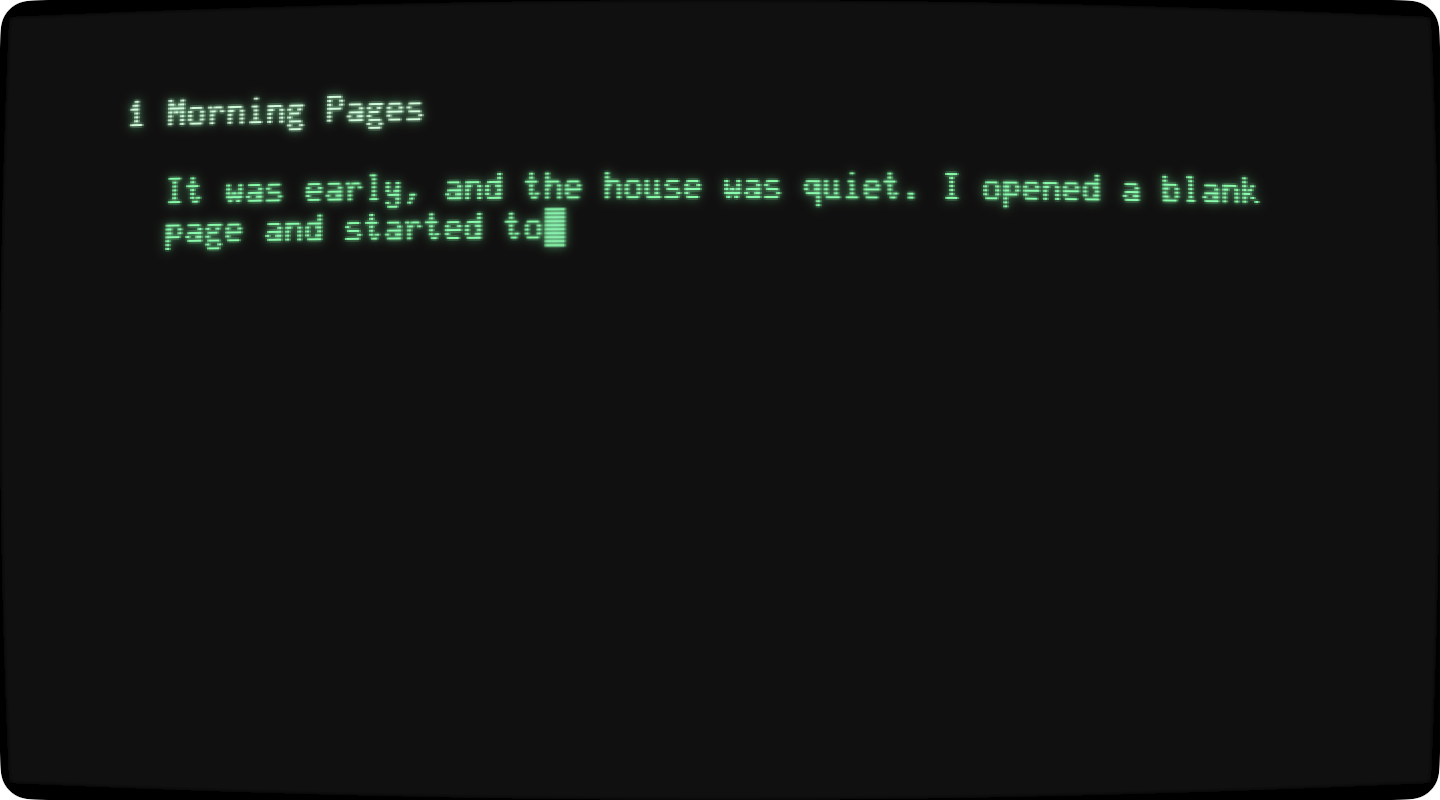
Use WriteRoom as a simple full-screen typing machine. Or use it as one of the fastest, most capable Markdown editors you can find. Either way, start with a new document and reach for the features you need.
Core Commands
To start writing:
- Use File > New (Command-N) and start typing
To write in Markdown or plain text:
- New documents are Markdown. Change this in WriteRoom > Settings > General.
- Use Format > Make Plain Text or Make Markdown to switch formats
To enter full screen mode:
- Use View > Enter Full Screen (Control-Command-F)
That's it. Just a few commands and you're writing without distractions.
Use What You Need
When your writing needs more:
- Structure: headings, folding, and other organizational tools
- Formatting: emphasis, links, footnotes, and tables
- Fewer distractions: focus and typewriter modes, word count goals
- Sharing: export to Word, print, other Markdown apps
- Look and sound: themes, typography, typing sounds
Everything else is in the sidebar. Read a page when you need it.
Drop What You Don't
Three defaults suit long, structured documents. For quick notes, you may want to change them in WriteRoom > Settings > General:
- Sticky headings: turn off to stop pinning the current heading to the top of the window
- Minimap scroller: turn off to use a regular scroll bar
- New Document: choose Plain (.txt) to start new documents without Markdown
Thanks and enjoy!
DEC Terminal theme isn't for every document
WriteRoom uses the DEC Terminal theme by default. It draws letters with the dots of a real 1980s terminal. A wonderful (I think!) effect in English and languages with Latin letters. Imperfect for other cases. See Using Themes for modern typography.