Appearance
Links & Footnotes
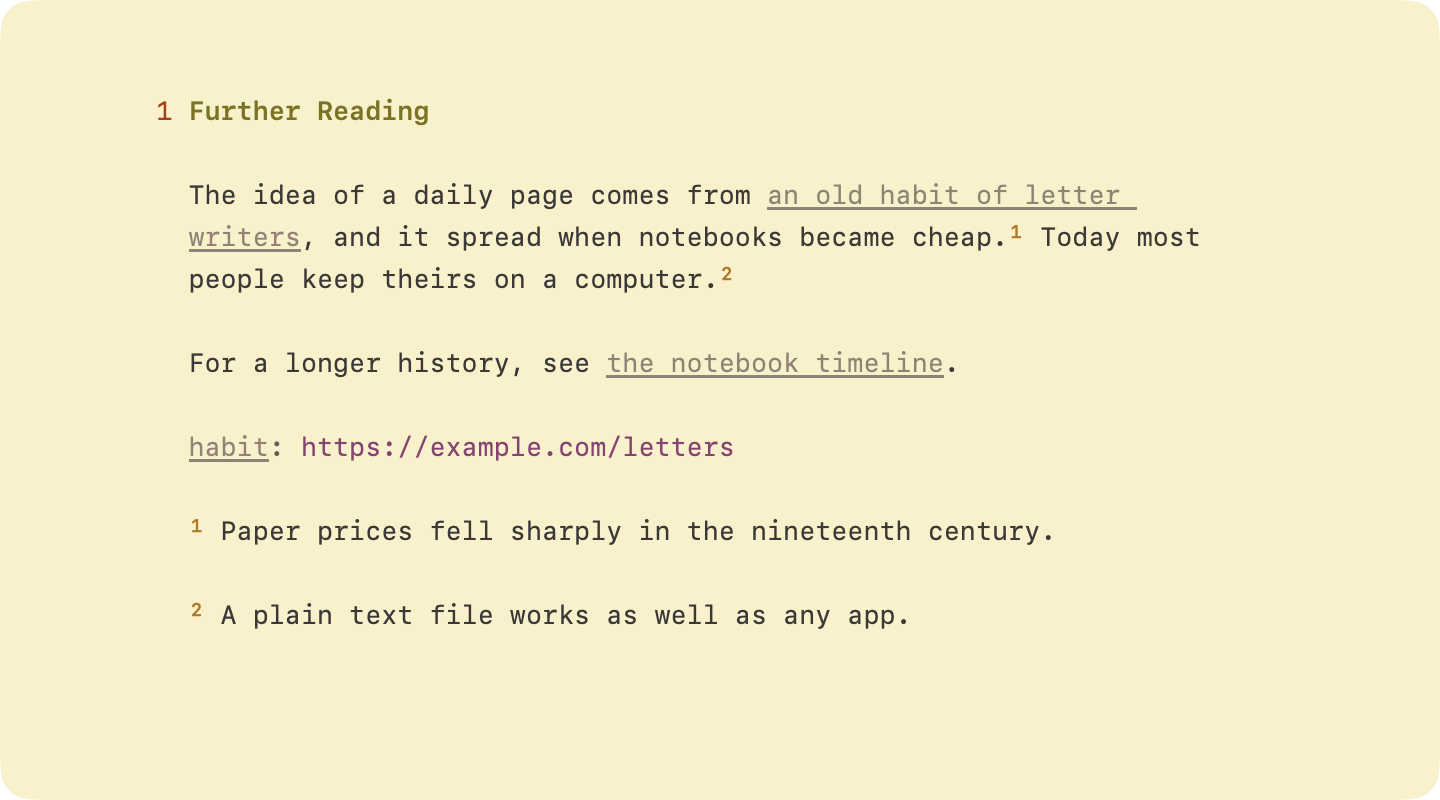
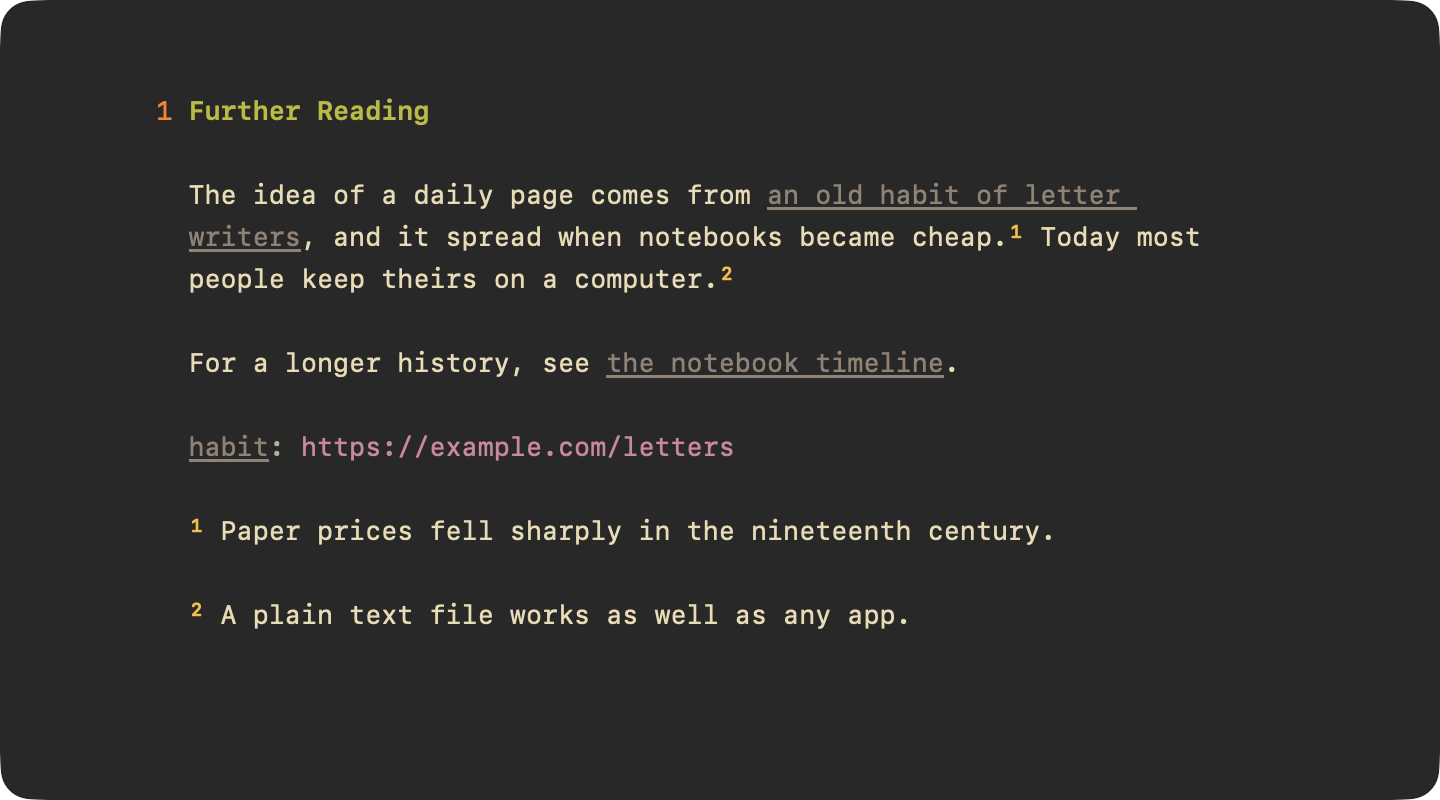
Links point somewhere else. Footnotes hold an aside at the bottom of the document. WriteRoom writes both for you and keeps them numbered.
Links
To add a link
- Format > Links & Footnotes > Add Link… (Command-K). The selection becomes the link text and the caret moves to where the URL goes.
- Or paste a URL over selected text.
A bare domain like hogbaysoftware.com opens as an https link.
To link to a heading
- Put the caret in the heading's section and choose Edit > Copy > Link to Heading
- Paste where you want the link
The link points to the heading's anchor, like [Soil](#soil). Command-click it to go there.
To open a link
- Go > Open Link (Command-Return) with the caret in the link
- Or Command-click the link
- Or Control-click the link and choose Open Link
To step through links
- Go > Previous Link
- Go > Next Link
Reference Links
A Reference Link keeps the URL out of your sentence. The text says [WriteRoom][1], and a definition elsewhere says [1]: https://….
To add a reference link
- Format > Links & Footnotes > Add Reference Link (Shift-Command-K). WriteRoom numbers it and adds the definition.
To convert a link
- Format > Links & Footnotes > Convert to Reference Link
- Format > Links & Footnotes > Convert to Inline Link
Type ][ to choose from the labels already defined.
Footnotes
A footnote reference looks like [^1], and its note starts with [^1]:. Indent following lines four spaces to keep them in the note.
To add a footnote
- Format > Links & Footnotes > Add Footnote (Option-Command-K). WriteRoom adds the next numbered note.
Type [^ to choose from the notes already defined.
To go between a reference and its note
- Go > Go to Definition (Control-Command-J)
- Or Command-click the reference or the note
Hiding the Markup
With WriteRoom > Settings > Markdown > Hide link and footnote marks turned on, a link shows only its text, and footnotes show as small raised numbers. Numbers follow the order the notes appear in the document.
Checking Links
Format > Check Document… finds references and footnotes with no definition, definitions nothing uses, links to headings that don't exist, and links to missing files. See Clean Up & Check.