Appearance
Markdown Formatting
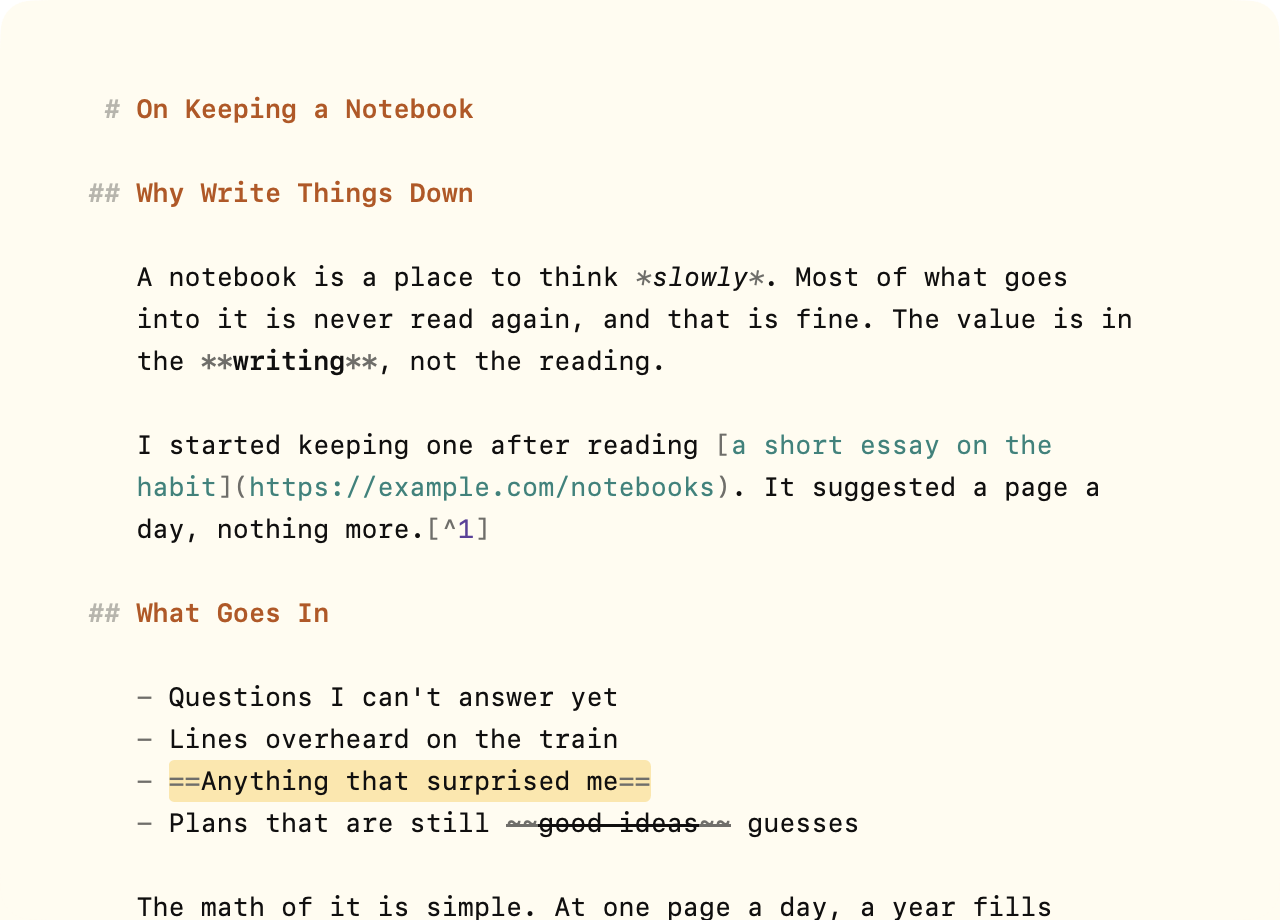
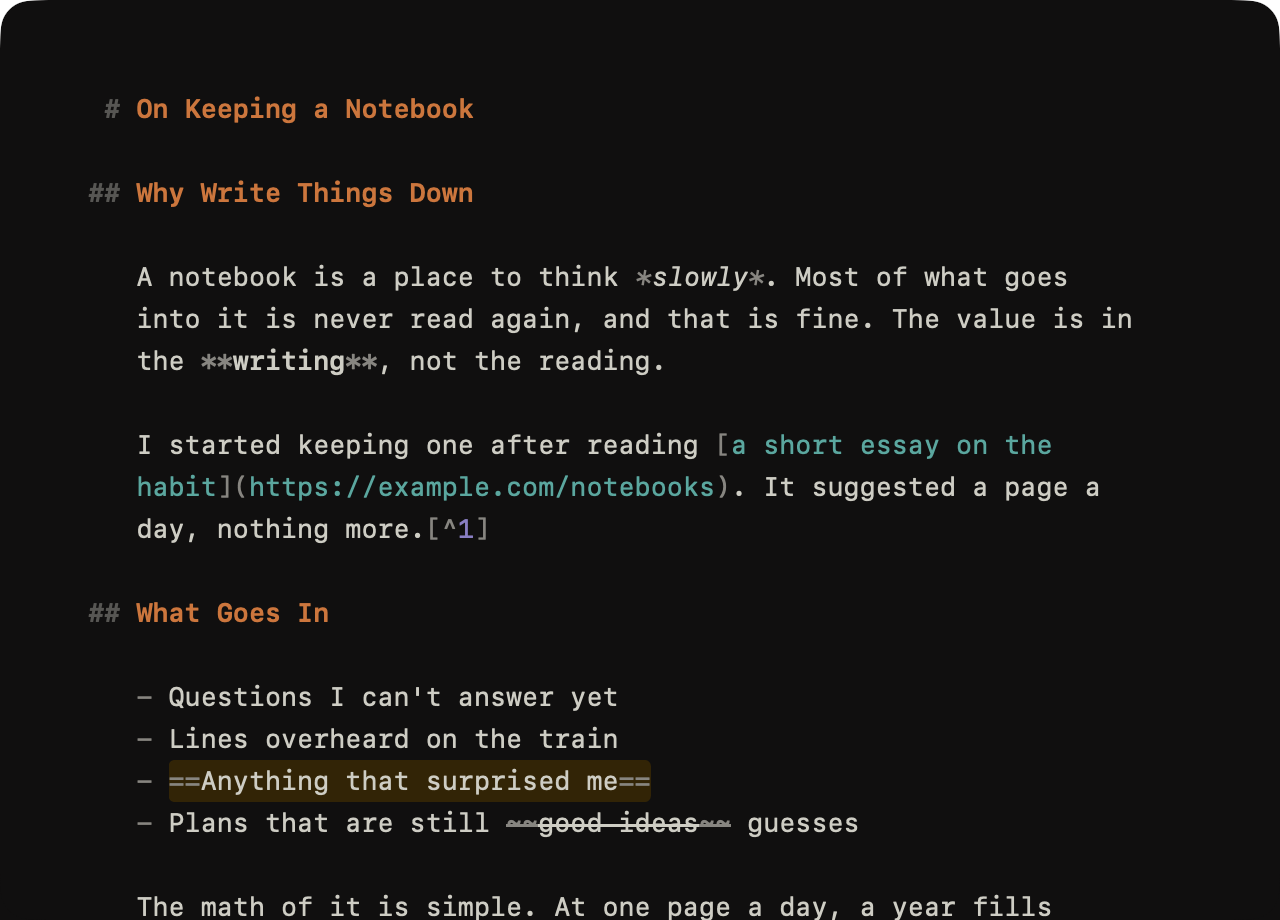
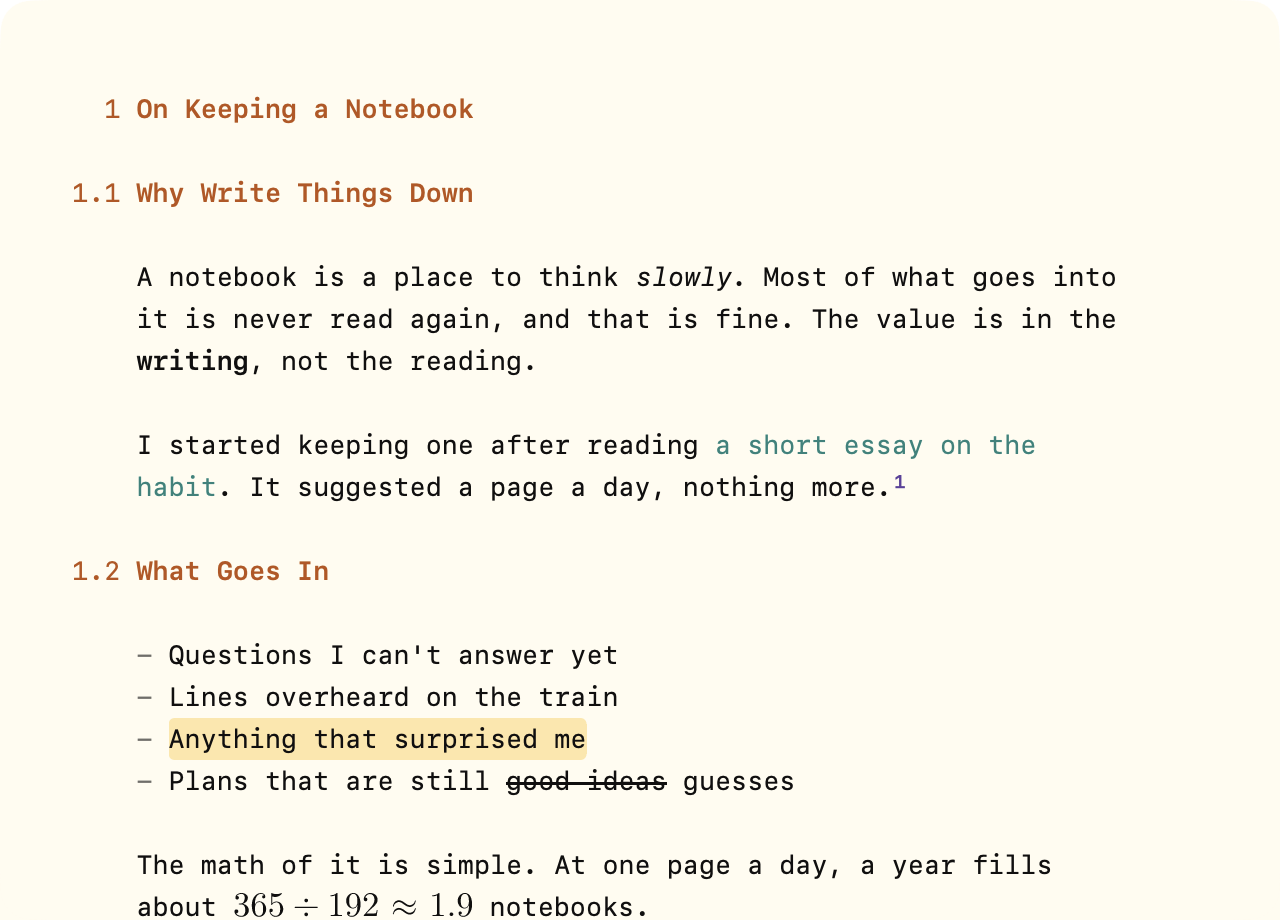
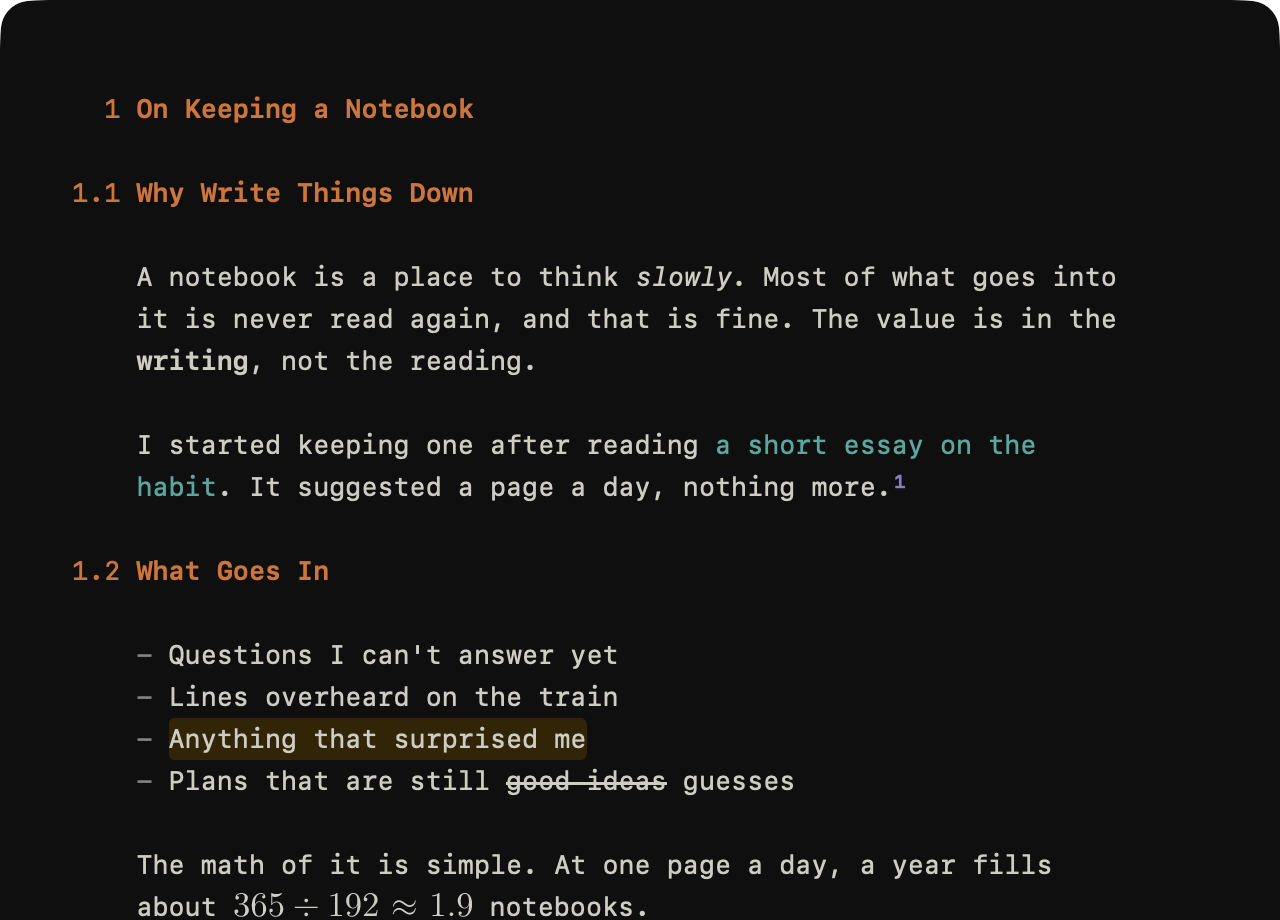
Markdown formats text with plain characters: **bold**, # Heading, - list item. WriteRoom colors the markup as you type and has commands to write it for you.
The Format menu works in Markdown documents. In a plain text document WriteRoom offers to make it Markdown first. See Plain Text & Markdown.
Text
To format text
Select some text, or place the caret in a word, then:
- Format > Bold (Command-B)
- Format > Italic (Command-I)
- Format > Highlight (Shift-Command-H)
- Format > Strikethrough (Shift-Command--)
- Format > Code > Inline Code (Shift-Command-M)
Use the same command again to remove the formatting.
To remove formatting
- Format > Clear Formatting (Command-\). Press it again to clear the next level out.
Blocks
To make a heading
- Format > Headings > Heading 1 through Heading 6 (Command-1 through Command-6)
To make a list
- Format > Lists > Bulleted List (Command-L)
- Format > Lists > Task List (Option-Command-L)
- Format > Lists > Ordered List (Shift-Command-L)
Press Return to continue a list. Press it on an empty item to step out a level. Tab and Shift-Tab indent and outdent list items.
Numbered lists renumber as you edit, or use Format > Lists > Renumber List.
WriteRoom > Settings > Markdown > Lists sets bullets and renumbering.
To add a line break
- Press Shift-Return to start a new line in the same paragraph, list item or quote.
See Hard-Wrapped Markdown for line breaks and unwrapping paragraphs.
To check off a task
- Click its checkbox
- Or use Format > Lists > Mark as Completed (Shift-Command-C)
Checking a task checks its subtasks too. Checking the last open subtask checks its parent. Turn this off in WriteRoom > Settings > Markdown > Lists.
To make other blocks
- Format > Quote (Shift-Command-')
- Format > Code > Code Block (Option-Command-C)
- Format > Body turns a heading, list item, or quote back into a plain paragraph.
Links and Rules
To add a link
- Format > Links & Footnotes > Add Link… (Command-K). The selection becomes the link text and the caret moves to where the URL goes.
Reference links and footnotes are on their own page: Links & Footnotes.
To add a horizontal rule
- Edit > Insert > Horizontal Rule (Control-Command--)
Table of Contents
A table of contents is a list of links to your document's headings. WriteRoom writes it as ordinary Markdown between two comments, so it works anywhere Markdown is read.
markdown
<!-- toc -->
- [Installing](#installing)
  - [Requirements](#requirements)
- [Usage](#usage)
<!-- /toc -->
To add a table of contents
- Format > Headings > Generate Table of Contents
It goes above your first section, after any title and introduction. To move it, cut and paste.
To update a table of contents
- Format > Headings > Generate Table of Contents
It updates the one already there, rewriting only the entries that changed.
To go to a heading
- Command-click its entry
- Or Go > Open Link (Command-Return) with the caret in the entry
What's listed?
Every heading except the title, which is a lone # heading at the start of the document. Headings in quotes, lists and code blocks aren't listed.
Links use the same heading anchors as GitHub. To give a heading your own anchor, end it with {#name}: ## Installing {#setup}.
Options
Options go in the opening comment, then Generate Table of Contents to apply them.
levels=2-3lists only heading levels 2 through 3.levels=2lists level 2 alone.
markdown
<!-- toc levels=2-3 -->Hide Formatting
WriteRoom hides Markdown markup until your caret reaches it, so **bold** reads as bold. Choose what's hidden in WriteRoom > Settings > Markdown > Live Preview:
- Hide formatting marks: emphasis, code, highlight, and strikethrough
- Hide link and footnote marks: a link shows only its text
- Number headings: a heading's
#marks show as its outline number, such as 2.1 - Typeset math: see Math
All are on by default.
Tables
See Markdown Tables.
Code
Code spans and code blocks are set in a monospace font. Name a language after a code block's opening fence to color it:
markdown
```swift
let greeting = "Hello"
```
WriteRoom colors JavaScript, TypeScript, JSON, HTML, XML, CSS, YAML, Rust, Python, Swift, Go, C, C++, Shell, Java, Kotlin, C#, Ruby, SQL, Lua, Scala, Haskell, OCaml, F#, Lisp, Elixir, Objective-C, PHP, Dart, PowerShell, LaTeX, Mermaid, TOML, Dockerfile, and diffs.
More Markdown
WriteRoom also reads these extensions from Pandoc:
- Superscript and subscript:
x^2^andH~2~O - Definition lists: a term on one line, then
:and its definition on the next - Attributes:
{#id .class}at the end of a heading - Front matter: a block of settings between
---lines at the top of the document. It folds when the document opens.
Math
Write LaTeX math between dollar signs: $E = mc^2$ inline, or $$…$$ for a display equation. With Settings > Markdown > Typeset math turned on, WriteRoom typesets it in place. Move the caret into an equation to edit its source, with the typeset result shown above it.