Appearance
Text Editing
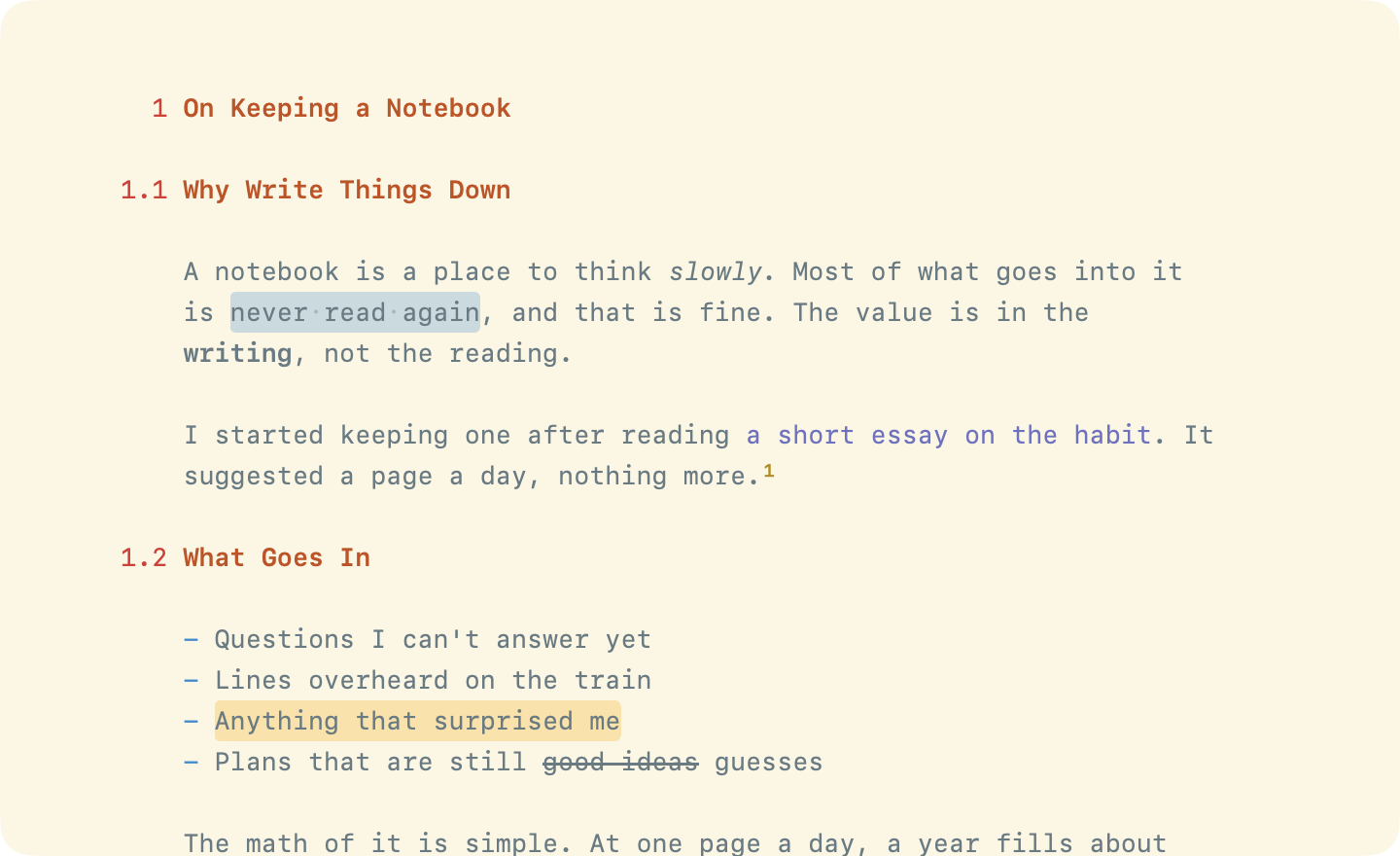
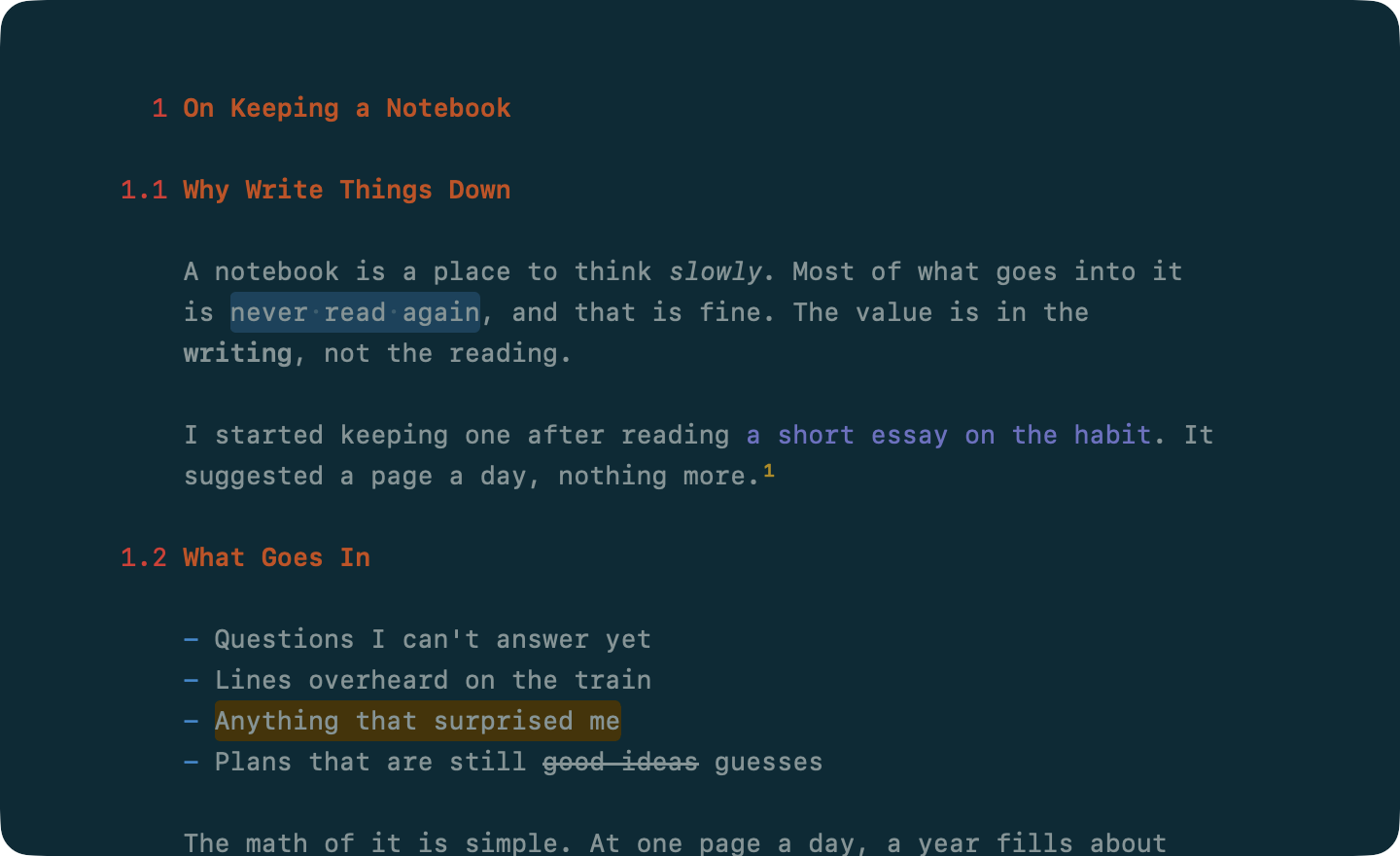
WriteRoom edits text like other Mac apps. This page covers the extras.
Insert
To insert the date or time
- Edit > Insert > Date (Shift-Command-D)
- Edit > Insert > Time
- Edit > Insert > Date & Time
To insert ISO dates like 2026-09-23, turn on WriteRoom > Settings > General > Insert dates in ISO format (YYYY-MM-DD).
Select
Edit > Selection selects the word (Control-W), sentence (Control-S), paragraph, or section at the caret. A section is a heading and everything under it.
To grow or shrink the selection
- Edit > Selection > Expand Selection (Control-Shift-Command-Right)
- Edit > Selection > Contract Selection (Control-Shift-Command-Left)
Double-click a bracket or quote to select through to its partner.
Move
Edit > Arrange moves and indents lines, list items, and sections from the keyboard. See Arranging Text.
Transform and Speak
Edit > Transformations changes case, straightens curly quotes, and joins hard-wrapped lines back into paragraphs (see Hard-Wrapped Markdown). Edit > Speech reads the selection aloud. Edit > Writing Tools works as it does in other Mac apps.
Completions
WriteRoom can type the closing half of a pair for you.
Turn these on in WriteRoom > Settings > Autocorrect > Auto-close:
- Brackets and quotes
( [ { " ' - Markdown marks
* _ ` ~ <
Control-Click Menu
Control-click the text, or press Control-Return, for commands that fit the selection: Copy As, Look Up, spelling suggestions, Open Link, Mark as Completed, Rename Heading, and the Table menu.
Text Direction
WriteRoom writes right-to-left languages like Arabic and Hebrew, and mixes them with left-to-right text. Each paragraph takes its direction from its first letter.
To set a document's direction
- Format > Text Direction > Auto, Right to Left, or Left to Right
The arrow keys move the way the text reads.