Appearance
Using Windows
From macOS User Guide:
Bike Window Options
To open a single document in multiple windows
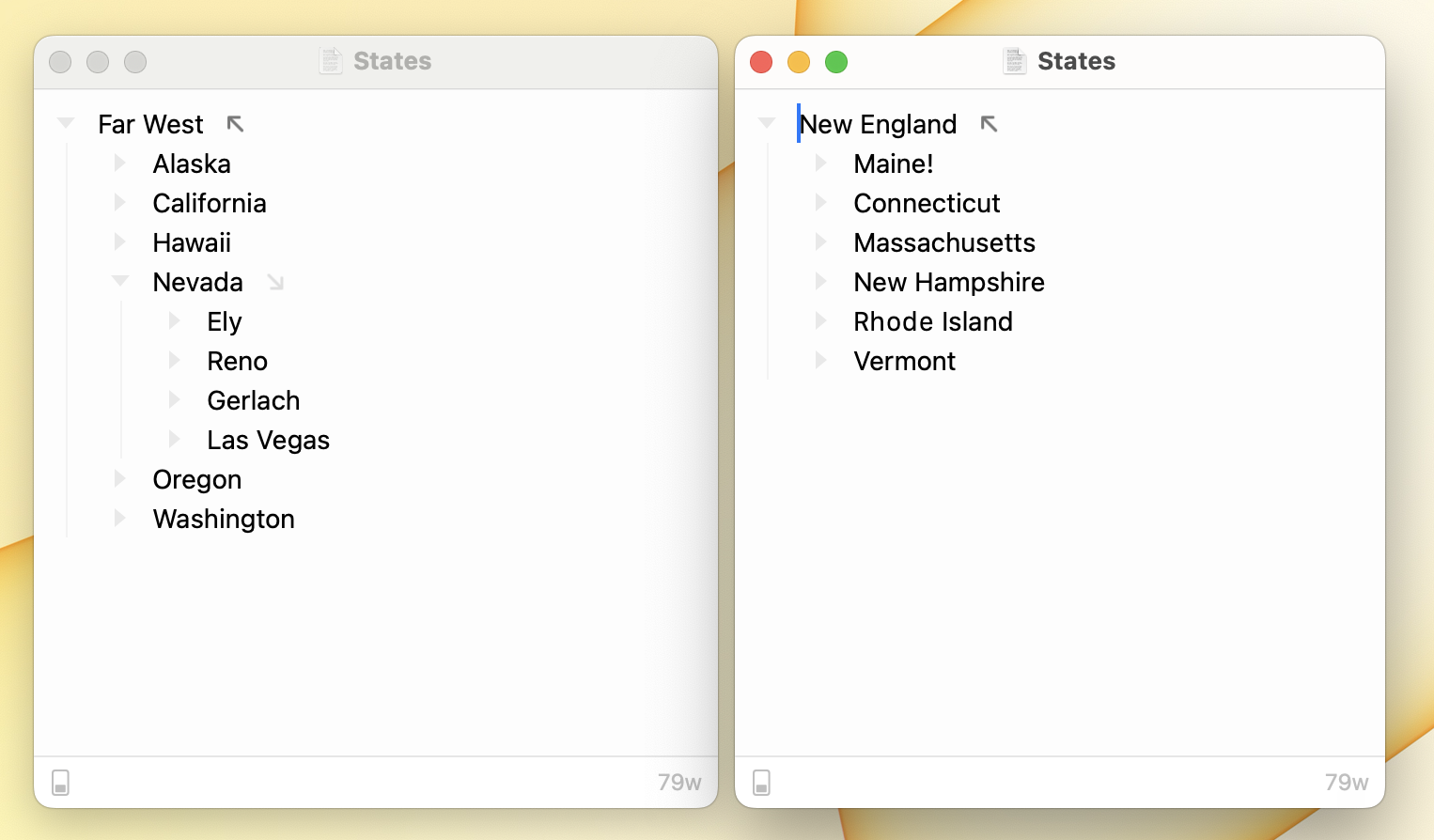
- Use the menu item Window > Duplicate Tab to New Window
- Each window maintains its own selection, focused row, and expanded row.
To open a single document in multiple tabs
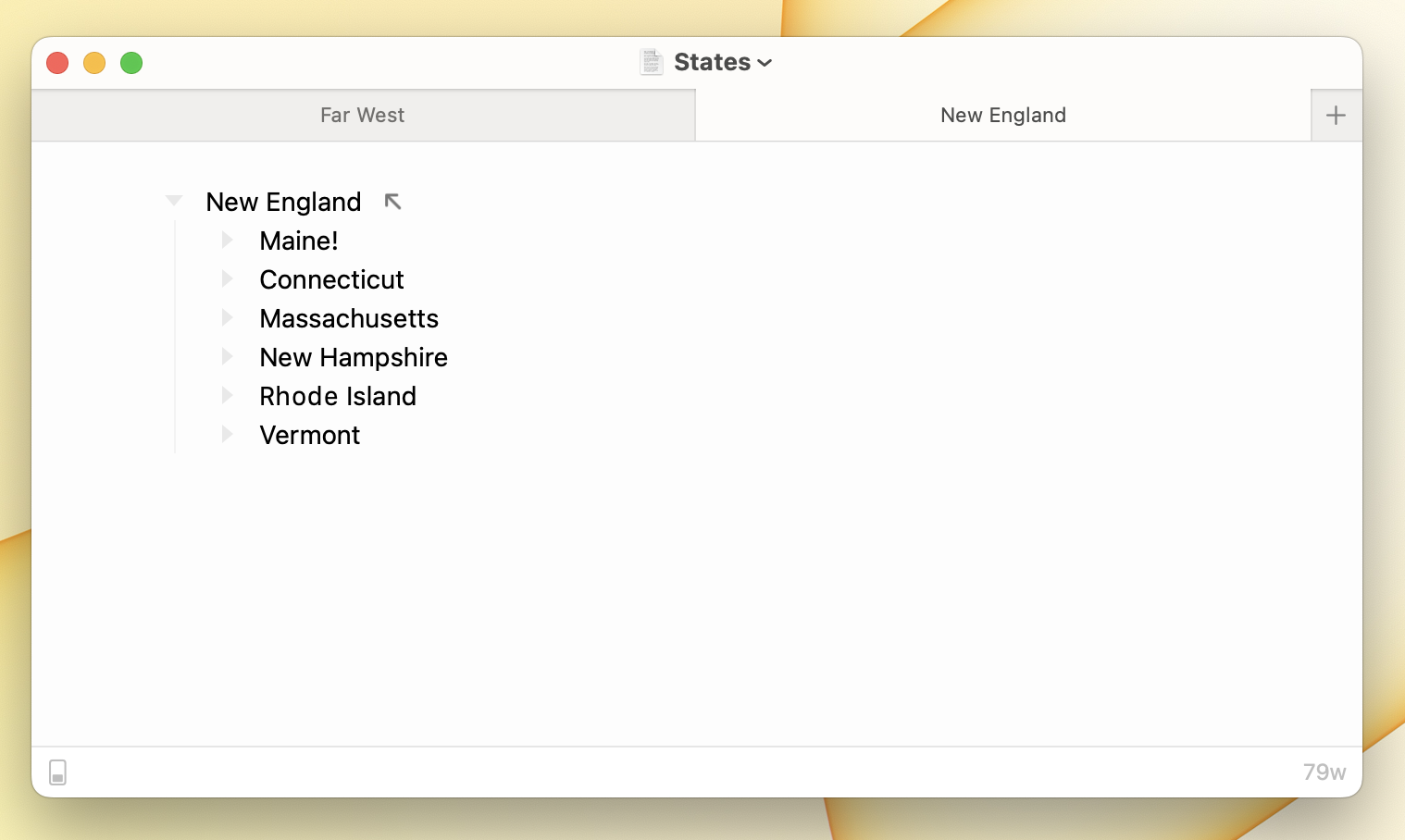
- Use the menu item Window > Duplicate Tab
- Each tab maintains its own selection, focused row, and expanded row.
To open multiple documents in a single window in separate tabs
- Use the menu item File > New Tab (Option-Command-N) to open a new untitled document in a new tab. (Must hold down Option to see that menu item.)
- Use the menu item Window > Merge All Windows to merge all windows into a single window with multiple tabs.
- You can also drag existing tabs from window to window when the tab bar is visible. The tab bar is always visible if a window has multiple tabs… to make it visible when only a single tab is present use the menu View > Show Tab Bar.
Full Screen Mode
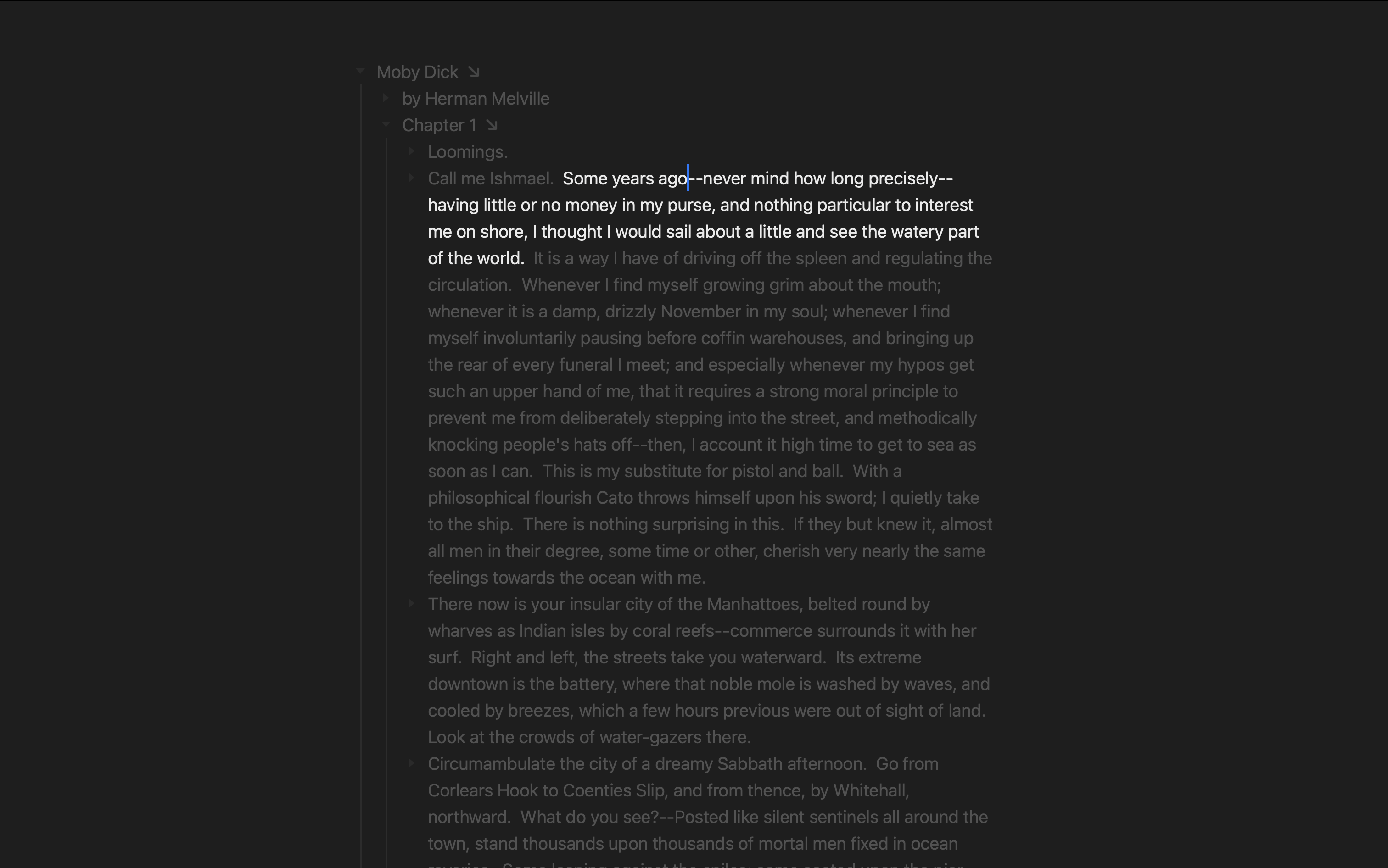
Full Screen Mode expands your outline editor window to fill the entire screen.
When you're trying to concentrate, the rest of your desktop (other windows, the menu bar, that notification) is all just waiting to pull you away. Full Screen Mode solves this by giving Bike the whole screen and tucking everything else out of sight. When I want to settle into a long writing session, this is the first thing I turn on.
To enter full screen mode
- View > Enter Full Screen (Control-Command-F)
- Alternatively click the green window button and choose "Enter Full Screen"
To exit full screen mode
- View > Exit Full Screen (Control-Command-F)
- Alternatively click the green window button and choose "Exit Full Screen"
Full Window Mode
Full window mode strips Bike down to just your outline. It's Bike's own minimal mode, and it's a different thing than the standard macOS full screen mode.
To enter or leave full window mode
- View > Enter Full Window (Command-.)
- Choose View > Exit Full Window (Command-.) to return.
When you enter full window mode Bike:
- Hides the window's title bar, so the editor toolbar sits flush at the top and takes over hosting the title bar's View menu and buttons.
- Collapses the sidebar and inspector.
- Hides the status bar.
What's left is your outline, edge to edge. As you type, the remaining controls fade away so nothing competes with your writing, and they reappear when you move the mouse. Leaving full window mode puts everything back exactly as it was: your sidebar and inspector return to their previous widths and your status bar comes back.
Window Layout
Some people want a new document to open with the sidebar showing; others would rather start with a clean, minimal window. The same goes for the inspector, the window's size and position, and the rest of the layout. There's no single right default.
Bike solves this with window layouts, configured in Settings > Document under New Window.
To save a window layout
- Open a document and arrange the window exactly how you'd like new documents to appear: show or hide the sidebar, inspector, and status bar, and size and position the window to taste.
- Open Settings > Document and click Save Window Layout.
Bike captures that arrangement as your saved layout and opens new documents with it.
Match the Current Window's Layout
A checkbox, Match the current window's layout, decides which layout new documents actually use:
- On (the default): a new document copies the layout of whichever window is frontmost at the time. Work with the sidebar open, and your next new document opens with the sidebar open too.
- Off: new documents ignore the current window and use the layout you saved with Save Window Layout.
So if you want every new document to open with one consistent setup, turn this off and save your preferred layout. If you'd rather a new document pick up wherever you're working, leave it on.
Bike Window Restoration
macOS has a standard feature that saves windows when you quit an application and restores them next time you open the application.
To have your windows restored you need to make sure that Bike doesn't close windows before it quits. There is a system setting for this "Close windows when quitting an app", but I have found that many users want to use a separate setting for Bike, without changing that system setting.
Bike no longer uses the system setting. Instead to leave windows open when quitting Bike you should open Settings > Document. And then make sure that "When Quit Bike: Close documents" is not checked. After you've done that then Bike should restore your open windows and the focused row, collapsed rows, and the selection.
Bike "Secondary" Restoration
If standard macOS Window Restoration, described above, is not available then Bike will use secondary restoration. Secondary restoration restores only Bike outline state such as expanded rows, focused row, and selection. It does not restore windows, a new default window is created when opening your outline document.