Appearance
Outline Checking
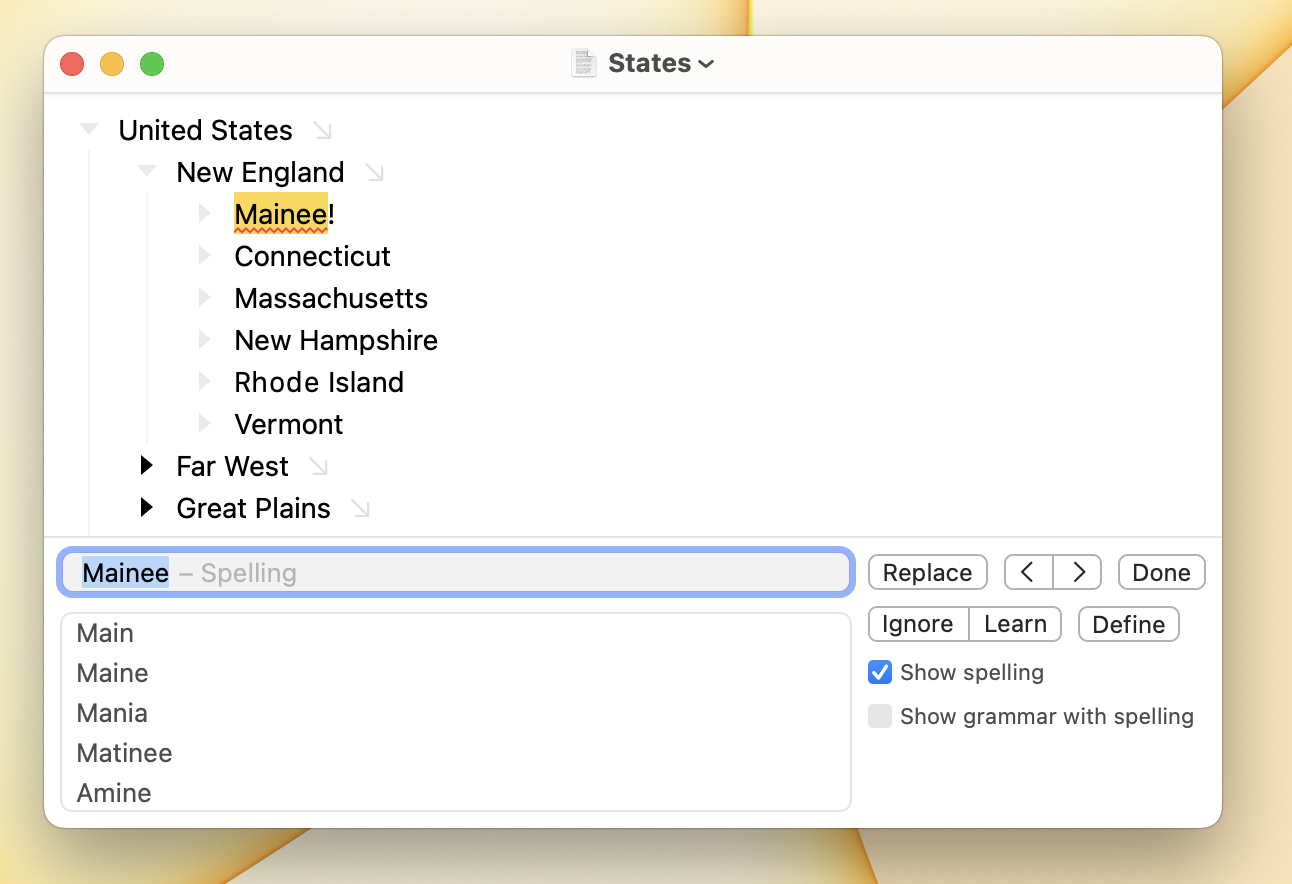
Bike supports autocorrect, substitutions, user replacements, spell checking, and writing tools. Bike's text checking interface is custom built, adopting and then improving upon macOS standard behavior.
Spelling and Grammar Check
Bike will highlight spelling errors in your outline with a solid red underline. To fix a spelling error move the text caret to the end of the word. After a half second the text caret will bounce and a popup will show with a suggestion.
.png)
Sometimes text checking can't guess a word. In that case the text caret still bounce when it tries, but no popup will show. Then you'll have to fix the spelling manually. This happens to me quite often because I really can't spell, or even come close sometimes!
To find a text checking error
- Edit > Checking > Check Next (Command-;)
- Edit > Checking > Check Previous (Command-:)
These commands both select the found error and show the text checking panel. In the text checking panel you can also select suggestions and change text checking options.
What is checked?
Checking will check the focused rows of your outline including collapsed rows. Check Next will expand collapsed rows to reveal and select the found error. Text that is code formatted will not be checked.
Autocorrect
Autocorrect is a collection of features that replace text that you've typed with something else. For example autocorrect will capitalize the first word in a sentence, fix a spelling, or expand a user replacement.
- Use Delete (or Command-Z) immediately after an autocorrection to reverse it.
- Alternatively place text caret at end of autocorrected text and a popup will show allowing you to reverse that correction. This behavior ends after a few seconds, so if you want to reverse an autocorrection after that time you'll have to use Undo.
Autocorrect Options
Options are available in the Bike > Settings > Autocorrect settings panel. Autocorrect options all apply only as you are typing. For example if you paste text into an outline that text is not autocorrected.
Text Checking Panel
To show the text checking panel use Edit > Checking > Show Checking or use the Check Next or Check Previous commands. They also show the text checking panel.
To select a correction
- Press the Down arrow to select any suggestion
- Or type your own correction into the text field
To apply a correction and find the next
- Click the
Replacebutton in the checking panel - Or press Return to apply the correction
To apply a correction and return to work
- Press Option-Return to apply the correction and return to work
To hide the checking panel
- Click the
Donebutton in the checking panel - Or press the Escape key
Checking Panel Options
- Show spelling: Use macOS spell checker to perform spell checking, highlighting problems in your outline.
- Show grammar with spelling: Use the macOS spell checker to perform grammar checking, highlighting problems in your outline.
Writing Tools
Bike's editor works with macOS Writing Tools. Use them to proofread, rewrite, or summarize text in your outline.
To use Writing Tools
- Select the text that you want to work with
- Edit > Writing Tools > Show Writing Tools
- Or Control-click the selection and choose Writing Tools
Writing Tools require Apple Intelligence, so they are only available on Macs and macOS versions that support it. Bike provides the editor integration; the tools themselves are Apple's.