Appearance
Text Formatting
Bike supports bold, italic, code, highlight, strikethrough, superscript, and subscript text formatting. You can also insert links.
Bike's rich text editing should be familiar, but also has a few innovations. My goal is to make Bike formatting precise like Markdown, but without all the syntax characters.
To format text
- Use the formatting commands in the Format menu, or their keyboard shortcuts
- Or press Command-E to open the Formatting Popover and apply formatting with single keys
Formatting Popover
Rich text formatting is command based, to make text bold you need to use the bold command. This is straightforward, but can become slow if you can't remember the right keyboard shortcuts.
Bike's formatting popover makes this easier. You only need to learn one keyboard shortcut (Command-E) to show the popover. Once it's showing you can use single key shortcuts to apply formatting commands, and those shortcuts are listed in the popover so you don't need to memorize them. It's the one I reach for most.
Typing Affinity
Rich text editing can be frustrating at formatting boundaries. There is no precise way to specify what formatting to apply when inserting text at a boundary.
Bike solves this problem with a new concept: Typing Affinity. When your text caret is at a formatting boundary Bike attaches a new affinity bar to the bottom of the caret. Point that bar at the formatting you want applied to inserted text.
Visible Typing Attributes
Normally when you type, the text is formatted the same as surrounding text. But there are some cases where this isn't true. For example if you have an empty selection and choose "Bold" then the text you type will be different than the surrounding text.
Bike indicates this hidden formatting state by showing the hidden attributes as part of the text caret. For example in the above example the bold "B" icon would show above the text caret.
Links
Bike supports web links much like other rich text editors do. It also has its own application specific links that point at a row, a view, or a whole document inside one of your outlines. Those are covered in Outline Links.
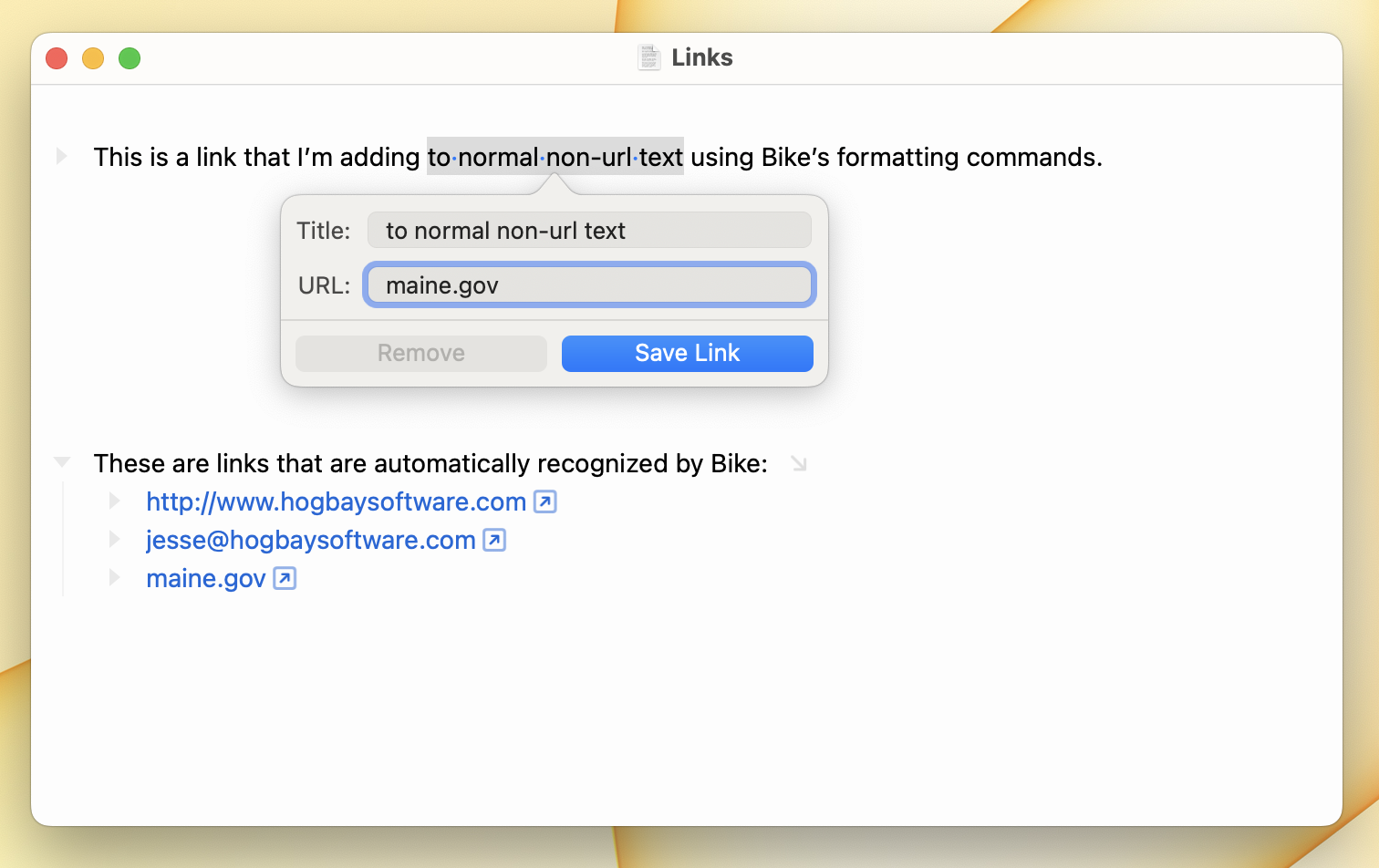
Links work like other formatting, with one twist. There's often an overlap between commands that activate a link and commands that edit it, and that overlap makes both tasks harder. Bike solves this problem with link buttons: a small button is added after each link, so the button does the activating and the link text stays ordinary editable text.
- To add a web link, type or paste its URL. Bike detects URLs as you type and makes them clickable, which is the "Use smart links" option in Settings > Autocorrect, on by default.
- To turn text you've already written into a link, select it and use Format > Add Link (Command-K).
- Or copy the URL first, then select the text and paste. Bike applies the URL to your selection instead of replacing it.
- To open a link, click its link button, or use Go > Open Link (Command-Shift-O).
- To open a link in a new tab, Command-Click it. To open it in a new window, Command-Option-Click it.
- To flip whether that new tab or window becomes active, hold Shift as you click.
- To change what each of those clicks does, see Settings > Links.
- To edit a link's URL, right-click the link text or its link button and choose "Edit Link".