Appearance
Using Scripts
Use scripts to automate Bike and integrate with other apps. You can find existing Bike scripts on Bike's extension wiki. This section shows how to run scripts that someone else has written. If you want to create your own scripts please see the Creating Scripts section.
Which automation should I use?
Bike gives you a few ways to automate it, and people land on this page unsure which one they want. Here's how I'd choose:
- Scripts (AppleScript): the most powerful option, with full access to your documents and rows. Reach for it when you want fine control or need to drive Bike together with other Mac apps. You write code.
- Shortcuts (Apple's Shortcuts app): the easiest place to start, no code required. You build automations by stacking actions. Great when you want a quick automation you can run from your menu bar.
- Extensions: when you don't want a one-off automation but a real feature, such as a new command, keybinding, view, or style that becomes part of Bike.
- Command line tool (
bike): for the terminal and for scripting Bike from other tools. Bike has to be open; the tool drives the running app. - MCP server: to let an AI assistant like Claude read and edit your outlines for you. It's part of the
biketool.
If you're not sure, I'd start with Shortcuts for everyday automation and reach for Scripts when you hit its limits.
To try a script:
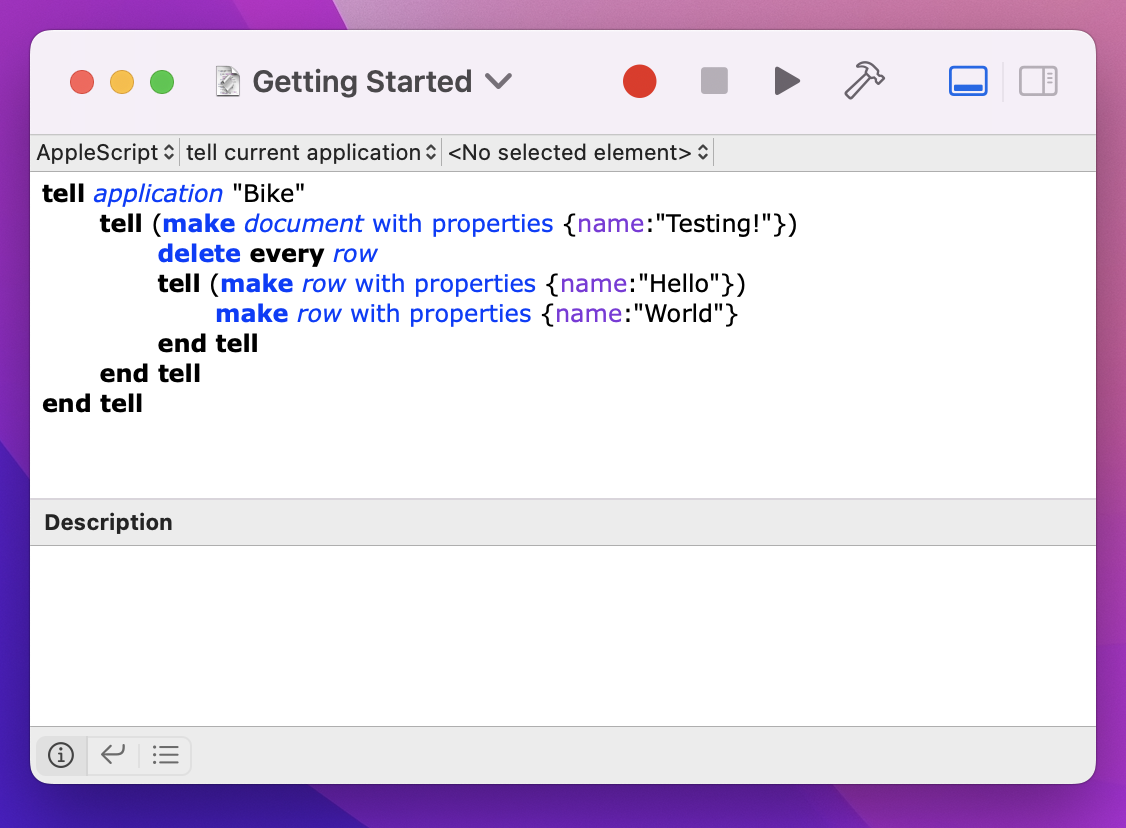
- Open the "Script Editor" application that comes with your Mac.
- Paste the following script into a new editor window.
- Make sure that the scripting language is set to "AppleScript". (Use
View > Show Navigation Barif no language selector is displayed at the top left of the document). - Press the "Play" button to run the script. This script will create a new document named "Testing!". It deletes any welcome text that may be inserted into the document. Then it adds a "Hello" row to the document that contains a "World" row.
applescript
tell application "Bike"
  tell (make document with properties {name:"Testing!"})
    delete every row -- remove any welcome text
    tell (make row with properties {name:"Hello"})
      make row with properties {name:"World"}
    end tell
  end tell
end tell
To test a script given to you by someone else:
I recommend that you first close your documents and create a new test document before running the script. You want to be sure that the script does what you want it to do, before you run it on your real work!
To install a script in the system script menu:
Open Script Editor and choose Help > Script Editor Help. Search for the help section "Access your scripts using the Script menu". That will lead you through the steps of enabling and saving scripts into the system script menu.
You can also use FastScripts or Keyboard Maestro to run your scripts with assigned keyboard shortcuts.