Appearance
Using Documents
Bike documents are ordinary macOS files. You open, save, version, and organize them just like documents in any other Mac app. Apple's guides cover the basics:
Own Your Data
Bike is a document based app that uses open file formats.
This combination gives you full ownership of your data. Your notes and thoughts aren't locked behind a proprietary web-service. They aren't hidden away in a database available for export only.
Format Options
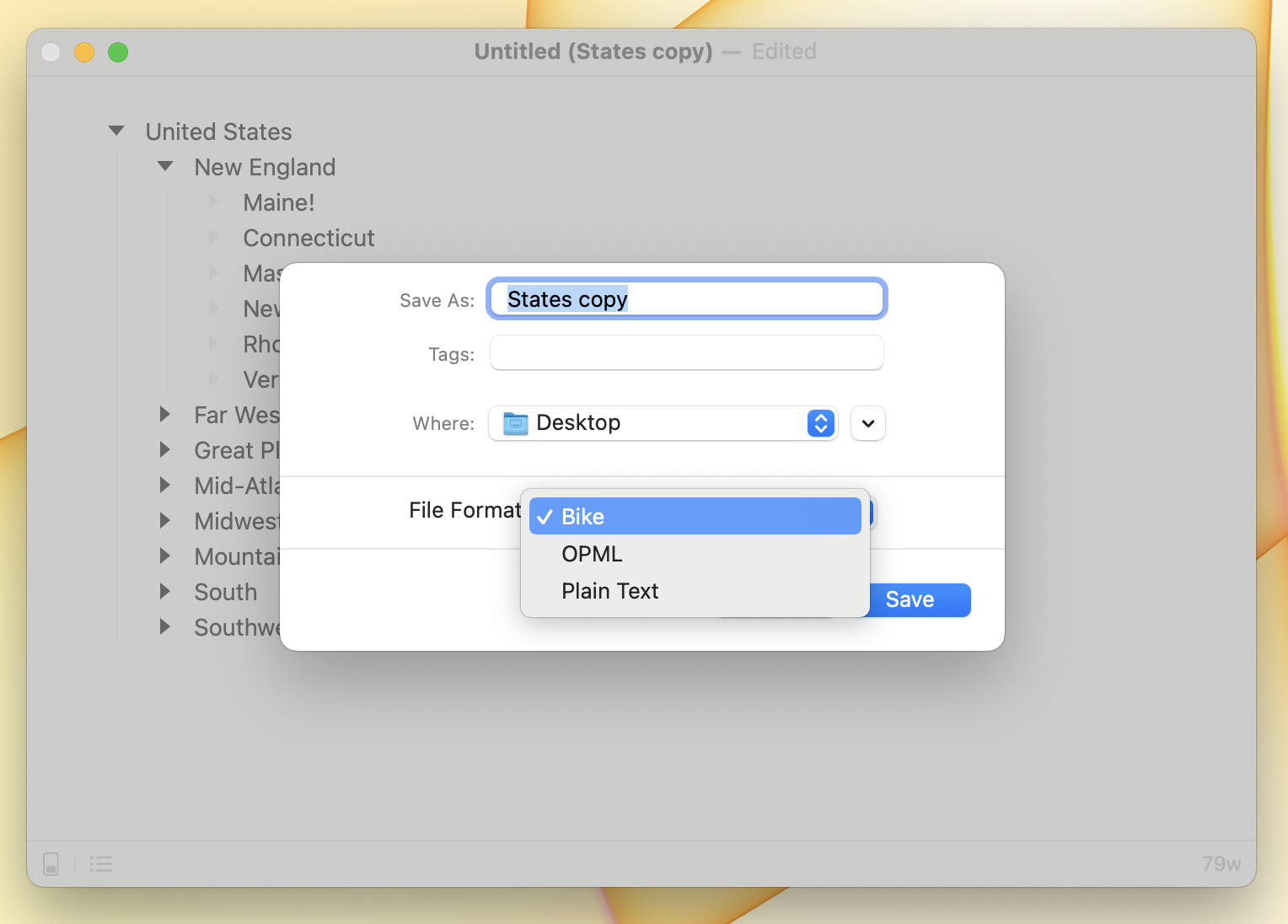
Bike's two main formats, .bike and .md, are equivalent: each can represent all of your Bike outline state, including row types, text formatting, attributes, and hierarchy. The format you choose depends on how you want to work with the file outside Bike.
Bike HTML Format .bike: Uses a subset of standard HTML. It's also a valid HTML document you can open in a web browser.
Bike Markdown Format .md: Uses a subset of standard markdown. Good for interoperability with other text-based tools.
Bike also works with several other formats (OPML, JSON, HTML, plain text, and rich text) for moving outlines between apps, processing them with tools, or copying into other documents.
Which format should I use?
If you're not sure, here's what I'd do:
- Just using Bike? Use
.bike. It's the native format, the default, and the one I recommend for everyday work. - Sharing, version control, or editing in other text tools? Use
.md. It's a plain markdown file that reads fine anywhere markdown does, and it preserves every Bike feature. See Bike Compatible Apps for more on interoperability. - Moving an outline to or from another outliner? Use
.opml. It's the long-standing interchange format for outlines. Just know that a round trip through another app may drop Bike-specific details that app doesn't understand. See Other Bike Formats. - Need something dead simple with no metadata? Use
.txt, and accept that links and other metadata won't survive a reopen. See Other Bike Formats.
.bike, .md, .opml, and .json are all loss-free in Bike, so you can switch between them any time with File > Save As.
Document Info
Each document carries a few settings of its own, separate from Bike's global Settings > Document. Open them with File > Document Info…
- Spelling and Grammar: set the spell-check language for this document, or leave it on "Automatic by Language" to let macOS detect it. The choice is saved with the document, so an outline you write in another language keeps checking against that language wherever you open it.
- File Type: shows the document's current format. Click Save As… to change it; this hands off to the normal save panel where you pick a different format.
- Save row created & modified attributes: when this is on, Bike records each row's created and modified timestamps in the file. It's only available for formats that can store row attributes, so it's disabled for formats like plain text that can't.
- Attachments: the document's file attachments, each with its size and how many rows reference it. Click a reference count to filter the outline down to the rows using that attachment, or drag a row out into your outline to reference it again.
Changes apply as you make them; click OK when you're done.
Open Options
When you open a document Bike can expand rows (or not) for you. To set which rows are expanded when you open a document use Settings > Document > When Open.
This setting is for when you open a document while Bike is running. When Bike re-opens a document when starting it will restore the exact row expand/collapse state. For more information on restoring documents see Using Windows.
File Extensions
When you save a Bike document the filename will default to a .bike, .md, .opml, or .txt file extension. This is usually what you want.
If it's not what you want you have the option to use your own file extension. For example you may wish to save "Bike" files with a .html file extension, or you might want to save "Plain Text" documents with a .text file extension.
To use a custom file extension
- Type the file extension after the file name in the "Save As" text field in the document save panel.
To load an outline that has a custom file extension
Open the file normally and Bike will detect the content format. When Bike loads an unknown file extension it performs these steps:
- Read as Bike (the native
.bikeformat), if that fails then… - Read as Bike Markdown, if that fails then…
- Read as OPML, if that fails then…
- Read as Plain Text, which should never fail
These same steps are followed when reading text from the pasteboard.