Appearance
Row Formatting
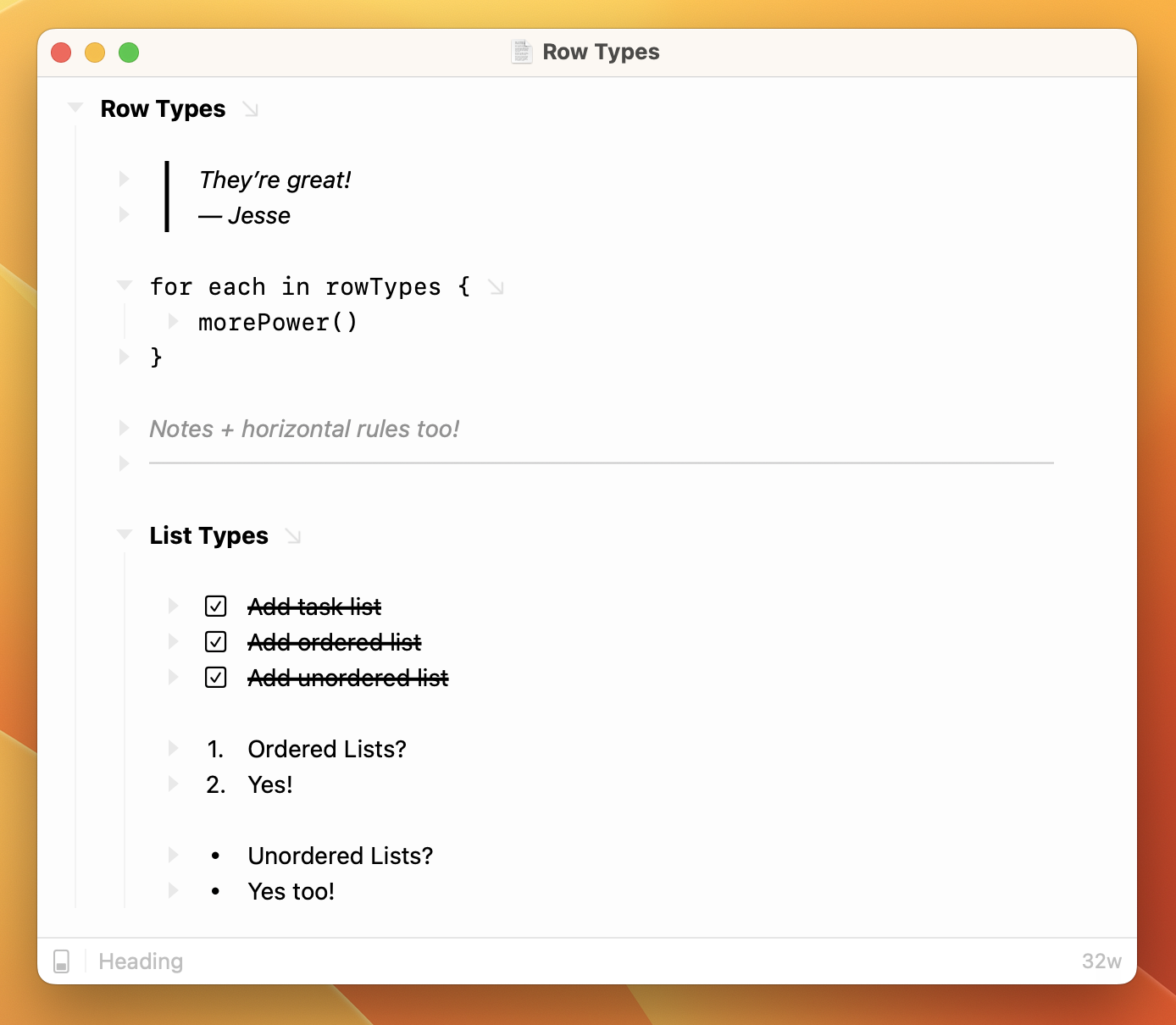
Use row types to add another level of structure and meaning to your outlines. Add heading rows, task list rows, ordered list rows, and more.
A row's type isn't just decoration. It carries meaning: a heading is a heading, a task is a task, an ordered list item knows its number. That semantic type is what changes how the row displays and behaves, and it's what carries through when you export to Markdown or OPML.
To set a row's type
There's more than one way to set a row's type. I recommend the smart row types below for most people, but the Formatting Popover and the Format > Row menu are there too.
Smart Row Types
The easiest way is through Bike's "smart row types" feature. In an empty row, type one of these markdown inspired shortcuts followed by a space:
| Type | Type this, then a space |
|---|---|
| Heading | # |
| Blockquote | > |
| Code Block | ``` |
| Note | : |
| Horizontal Rule | --- |
| Task List | [], -[], [ ], -[ ] |
| Ordered List | 1. |
| Unordered List | -, * |
The shortcut text is replaced and the row type is set. If smart row types aren't working, make sure Settings > Autocorrect > Use smart row types is checked.
Use the Formatting Popover
Use the same Formatting Popover (Command-E) that you use for text formatting to also set row types. Open the popover, and then press the down arrow to get a list of available row types to choose from. This is fast, and you don't have to remember any of the row type completions described above.
Use the Format > Row Menu
This is slower than the above methods. I've added this option mostly so that you can assign a keyboard shortcut for a specific row type. I think learning the smart row type completions described above is better for most people.
Tips and Tricks
To change a row's type back to "body" place your text caret at the start of the row and press delete. The row will become a default "body" row. Once the row is a "body" row then delete will join the row with the previous row.
To change a horizontal rule's row type back to "body" you can just start typing on the horizontal rule line.
The current row's type is indicated in the bottom status bar. You can also click this indicator to change the type.