Appearance
Editor View Settings
INFO
The settings on this page are per editor: each editor view (every window and tab) keeps its own, so you can turn them on for one without changing the others. Bike has many more settings that apply globally across every document and window; for those, see the Settings Window.
Bike has a handful of modes for making writing comfortable and keeping distractions out of the way. Each one is useful on its own, but they're designed to be combined. When I settle into a long writing session I usually turn on most of them at once.
- Text Wrap: cap and center the line length so wide windows stay readable.
- Writing Focus Mode: dim everything except the word, sentence, or paragraph you're writing.
- Typewriter Mode: hold the line you're typing at a fixed, comfortable height.
These pair especially well with macOS full screen mode.
Text Wrap
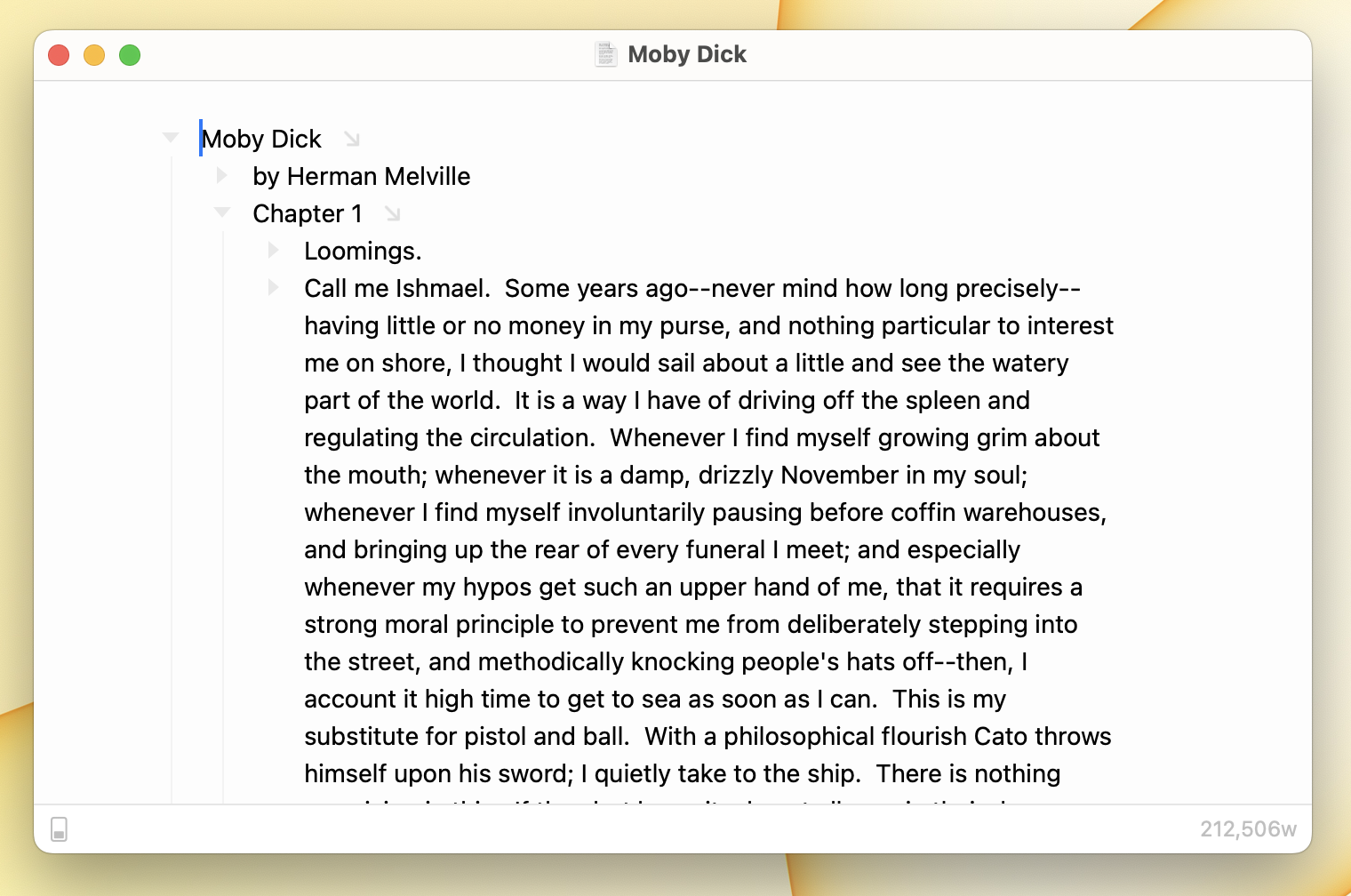
Text wrap limits the number of characters that your outline uses until the text wraps to the next line. When text is wrapping, margins are added to keep the text centered in the window. You can see text wrap in effect in the screenshot above.
A line of text that runs the full width of a wide window is hard to read. Your eye loses its place jumping back to the start of each line. Text wrap solves this by capping the line length and centering the column, so reading and writing stay comfortable no matter how big your window gets. I leave it on most of the time.
Text wrap will also scale your document to fit large windows. For example if you have text wrap enabled and then enter full screen mode you'll notice that the text is scaled larger to better fit your screen. If you wish to disable this scaling you can do so from Bike's typography settings.
To configure text wrap
Text wrap can be configured in Settings > Typography. Use the Line Width slider to wrap to the editor width or to a specific column width (66, 72, 80, 90, or 120 characters).
If you mostly want the centering and scaling, leave it at the editor width. If you care about a specific measure (for prose I find a narrower column easier to read), pick a fixed column width instead.
Writing Focus Mode
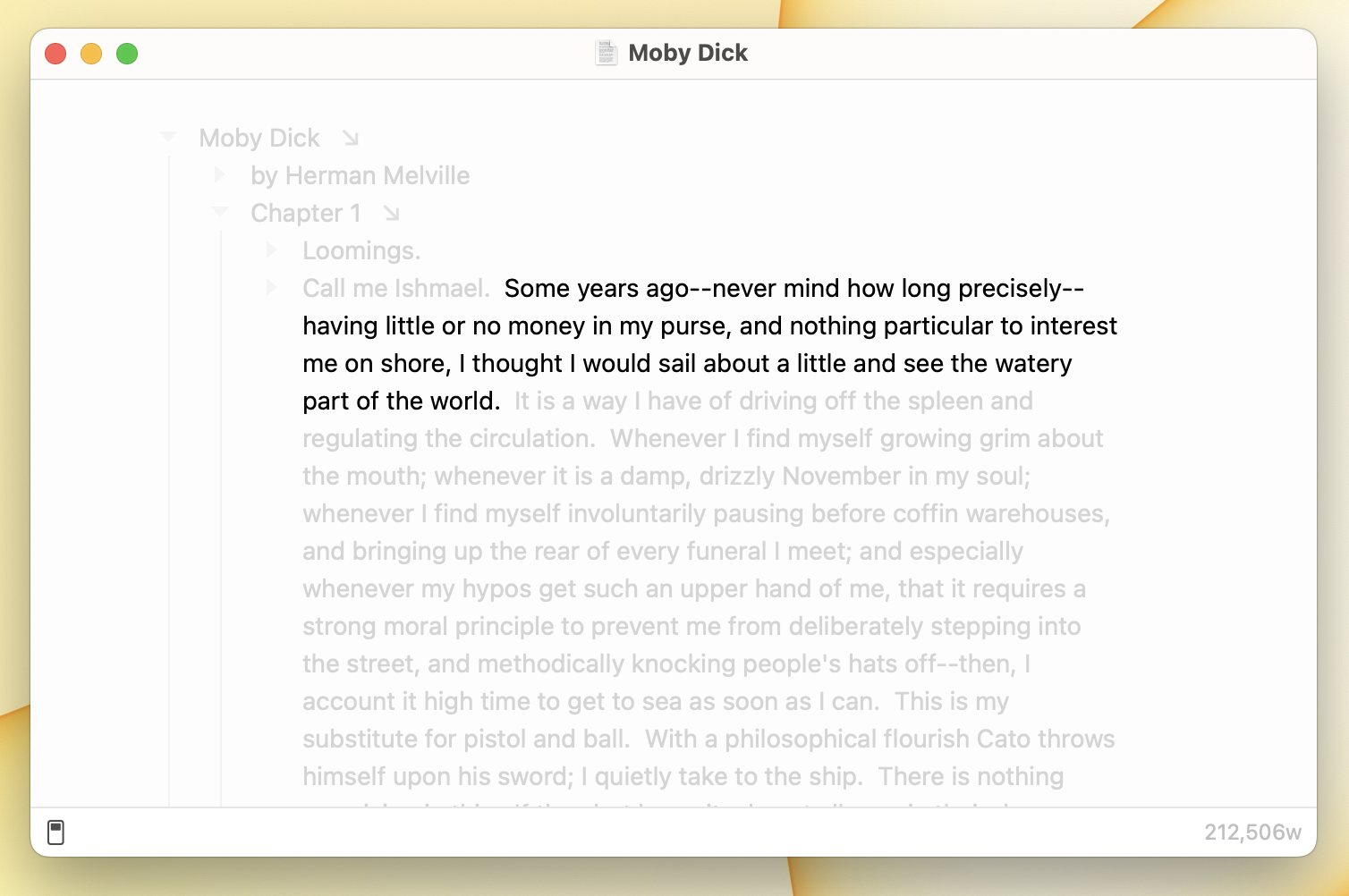
Writing Focus Mode focuses the current word, sentence, or paragraph by dimming out the rest of your outline.
A full outline can pull your eye in every direction while you're trying to get a thought down. Writing Focus Mode solves this by fading everything except the part you're actively writing, so there's nothing to read but the line in front of you. I reach for it when I want to draft without editing.
To enable Writing Focus Mode
- View > Writing Focus Mode > Enable Writing Focus (Option-Command-F)
- Alternatively you can use the "Editor Settings" button on the left side of the status bar
To configure Writing Focus Mode
- View > Writing Focus Mode > Writing Focus Word
- View > Writing Focus Mode > Writing Focus Sentence
- View > Writing Focus Mode > Writing Focus Paragraph
These set how much stays lit around the caret. Word is the most aggressive: only what you're typing is visible. Paragraph keeps the surrounding sentences in view, which I find better for revising. Sentence sits in between.
To disable Writing Focus Mode
- View > Writing Focus Mode > Disable Writing Focus Mode (Option-Command-F)
- Alternatively you can use the "Editor Settings" button on the left side of the status bar
Typewriter Mode
Typewriter Mode positions your text caret vertically in the window as you type. This keeps the text you are working on, and surrounding text, easily visible.
Normally the line you're writing creeps toward the bottom of the window until the text scrolls. Typewriter Mode solves this by holding the caret at a fixed height and scrolling the text past it instead. The line you're writing always stays in the same comfortable spot, just like the platen on a typewriter.
To enable typewriter mode
- View > Typewriter Mode > Enable Typewriter Mode (Option-Command-T)
- Alternatively you can open the Editor Settings popover from the lightswitch button on the left side of the status bar and turn on Typewriter Mode
To configure typewriter mode position
Choose where the text caret is positioned in the window:
- View > Typewriter Mode > Typewriter Top
- View > Typewriter Mode > Typewriter Center
- View > Typewriter Mode > Typewriter Bottom
Center is the classic choice and what I use. Your line sits in the middle with context above and below. Choose Top if you'd rather keep more of what comes next in view, or Bottom to keep more of what you've already written above the line you're on.
To disable typewriter mode
The same menu item toggles typewriter mode off once it's on:
- View > Typewriter Mode > Disable Typewriter Mode (Option-Command-T)
- Alternatively you can open the Editor Settings popover from the lightswitch button on the left side of the status bar and turn off Typewriter Mode