Appearance
Using Find Panel
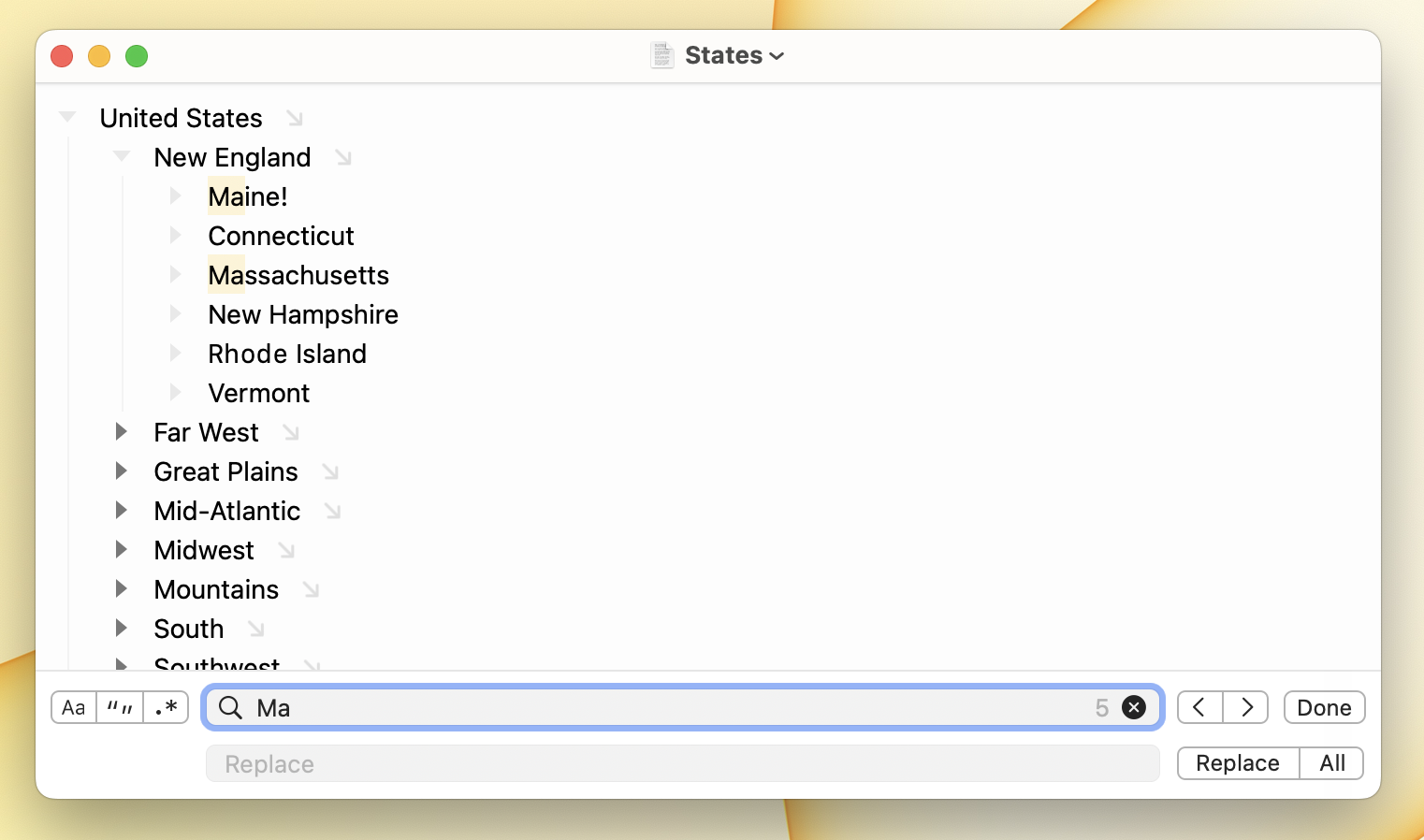
Use the find panel to find text in your outline. It works the way Find works in most Mac apps: it highlights matches in place and steps you through them one at a time, without changing which rows are visible.
Find, filter, or jump?
Bike gives you a few different ways to track something down. Reach for the one that fits what you're doing:
- Find panel: search the current view and highlight matches in place. Best when you want to read or edit a match in context.
- Outline filtering: hide the rows that don't match so only the matches (and their ancestors) remain. Best when you want to see your matches as a group, act on them at once, or save the query.
- Choice box: a fuzzy jump-to list for commands like Go To and Add Link. Best when you already know the row you want and just want to land on it fast.
- Outline paths: the query language underneath filtering, styles, and scripts. Learn this when text search isn't precise enough (e.g. "every unfinished task").
To show the find panel
- Use the menu Edit > Find > Find… (Command-F)
To advance to the next match
- Click the Next button in the find panel
- Or use Edit > Find > Find Next (Command-G)
The current match is highlighted brighter than other matches.
To go back to the previous match
- Click the Previous button in the find panel
- Or use Edit > Find > Find Previous (Shift-Command-G)
To replace the current match with the contents of the replace field
- Click the replace button
- Or press the Return key when the replace field has keyboard focus
To replace all matches
- Click the replace all button. Remember this will only replace all matches in the current focused region of your outline.
To hide the find panel
- Click the
Donebutton in the find panel - Or press the Escape key
What is searched?
Find will search the focused rows of your outline including collapsed rows. Find Next will expand collapsed rows to reveal and select the text that matches.
Find Panel Options
Find options show to the left of the search text field:
Aa - Your search will be case sensitive.
"" - Your search will match whole words.
.* - Your search will be interpreted as a regular expression.