Appearance
Creating Scripts
Create scripts to automate Bike and integrate with other apps. If you just want to run a script that someone else has written please see the Using Scripts section.
Also consider using Bike's more powerful extension system.
Overview
When scripting Bike you are dealing with documents, windows, and rows. Documents and windows are common scripting objects with a few Bike extensions–rows are specific to Bike.
Each row represents a row in your outline. Rows have a name for accessing the row's text. Rows also have an id and other attributes. Rows can contain other rows. When you move or delete a row those contained rows are moved or deleted with it.
You gain access to rows in a few ways:
- From properties of a document such as
root row,selection row,focused row. - From the
rowscollection belonging to each document. This collection contains all rows in the document (except for the root). This collection is a good place to quickly find existing rows. - From the
rowscollection belonging to eachrow.This collection contains only the rows that are directly contained by the row (the children). This collection is a good place for making new rows and to use as a target to moving existing rows into.
Dictionary
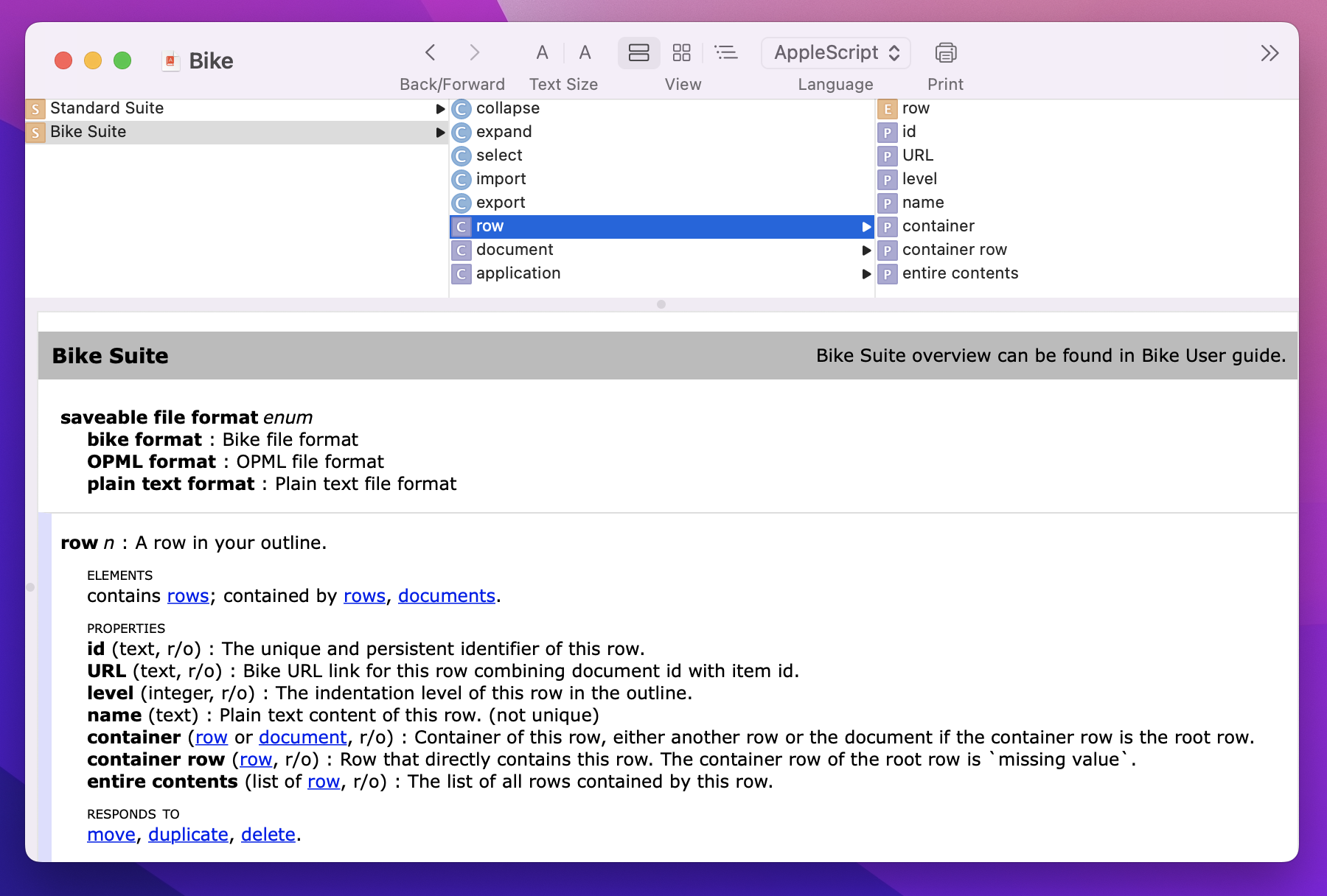
Use Bike's scripting dictionary to learn what parts of Bike are scriptable.
To open Bike's scripting dictionary:
- Drag and drop Bike onto Script Editor's application icon.
- Or from Script Editor use File > Open Dictionary and choose Bike's dictionary.
Getting Started
Here's the official starting point for learning AppleScript:
The starting point for lesser people, such as myself, is to find example scripts and then randomly change them until they do what you want. I've included some for you below. You can also find scripts in the Bike support form and ask scripting questions.
Example Scripts
You'll get the most out of these scripts by using Script Debugger instead of Script Editor that comes with your Mac. Among other things Script Debugger allows you to step through the script line by line so you can see the effect of each command on you document.
Kitchen Sink
This is a nonsense script that demonstrates many of Bike's scripting abilities. It's a good place to learn how basic things are done like making and moving rows.
applescript
tell application "Bike"

  -- This script makes a new demo document so that it won't mess up any documents that you have open.
  set demo to make document with properties {name:"Demo"}

  tell demo
    -- Bike shows welcome text in new documents, this line deletes that text
    delete every row

    -- Create a new "Hello World" row
    set helloWorld to make row with properties {name:"Hello World"}

    -- Add some child rows to "Hello World"
    tell helloWorld
      make row with properties {name:"one"}
      make row with properties {name:"two"}
      make row with properties {name:"rich text"}
    end tell

    tell row named "rich text"
      set bold of first word of text content to true
      set italic of second word of text content to true
    end tell

    -- Insert a new child in into the middle
    tell helloWorld
      make row at (after row named "one") with properties {name:"middle child"}

      -- Make a row "at" another row will at it as a child.
      make row at row 2 with properties {name:"middle child child"}
    end tell

    -- You can also just make an empty row
    make row

    -- Or you can make a row with a persistent id, so it's easy to find later, even if its name has been edited.
    -- A row's `id` is a read-only number that isn't stable across saves, so use the writable `persistent id` for this.
    make row with properties {persistent id:"boom", name:"My id is boom"}

    -- Change the name of an existing row. Look it up by persistent id using the `get row` command.
    set name of (get row persistent id "boom") to "You've been renamed"

    -- Check to see if a row exists
    if (get row persistent id "boom") is not missing value then
      log "Yes! row with persistent id boom exists"
    end if

    tell (get row persistent id "boom")
      -- Read/Write row level attributes
      exists (attribute named "test") -- false
      make attribute with properties {name:"test", value:"value"}
      value of attribute named "test" -- value
      set value of attribute named "test" to "new value"
      value of attribute named "test" -- new value
      delete attribute named "test"
    end tell

    -- When "Hello World" moves it brings all containing rows with it.
    move row named "Hello World" to (get row persistent id "boom")
    move row named "one" to before row named "two"

    collapse row named "Hello World" with all
    expand row named "Hello World"
    select at (get row persistent id "boom")

    -- Now just show "Hello World" and contained rows
    set focused row to row named "Hello World"
  end tell

  -- Make another document
  tell (make document with properties {name:"Move to"})
    -- delete welcome text again
    delete every row

    -- Move row from our original document to this new document
    move row named "middle child" of demo to first row

    -- Can also just copy rows to new document
    duplicate row named "one" of demo to end of rows
  end tell

end tell
Home Script
This script resets your view state to "Home"
applescript
tell front document of application "Bike"
  set focused row to root row
  if exists first row then
    select at first row
  end if
end tell
Cleanup Script
This script saves the current selected row. Collapses all rows. Then restores your selection, which also expands any rows needed to show the selection. Use it to cleanup when you have too many rows expanded, but you still want to keep working where you are.
applescript
tell front document of application "Bike"
  set saved to selection row
  collapse root row with all
  select at saved
end tell
Today Script
This script creates a simple calendar structure in your outline and adds a new line to "today" where you can start taking notes. It's interesting because it uses each row's persistent id to track rows. Once the calendar is created you can move it to any place in your outline and the script will keep working.
applescript
set yearName to do shell script "date +'%Y'"
set yearId to do shell script "date +'%Y'" & "/00/00"
set monthName to do shell script "date +'%B, %Y'"
set monthId to do shell script "date +'%Y/%m'" & "/00"
set dayName to do shell script "date +'%B %d, %Y'"
set dayId to do shell script "date +'%Y/%m/%d'"
set timeName to do shell script "date +'%l:%M %p' | sed 's/^ //'"

tell application "Bike"
  tell front document
    set y to my getOrMake(yearId, yearName, root row)
    set m to my getOrMake(monthId, monthName, y)
    set d to my getOrMake(dayId, dayName, m)
    select at make row at front of rows of d with properties {name:timeName}
  end tell
end tell

to getOrMake(getId, getName, rowContainer)
  using terms from application "Bike"
    tell container document of rowContainer
      set existing to get row persistent id getId
      if existing is not missing value then
        return existing
      else
        tell rowContainer
          return make row at front with properties {persistent id:getId, name:getName}
        end tell
      end if
    end tell
  end using terms from
end getOrMake
Run App Context Script
You can call from AppleScript into Bike's app extension API using the evaluate command.
Why might you want to do this? Generally, Bike's app context extension API is faster and more powerful than the AppleScript API. This lets you jump from AppleScript land, to Bike extension land, and then back to AppleScript land again.
TIP
The script that you pass should be plain JavaScript, not the TypeScript code used in most of the extension API documentation.
Here's a explanation of each step in the process:
- Call
evaluatecommand withscriptparameter and optionalinputparameter. - Bike will then evaluate that Javascript string in Bike's app extension context
- If the result is not a closure its string form is returned immediately.
- If the result is a closure, then Bike will call the closure, passing in the provided input (if any), and the string form of that closure result is returned.
Examples:
Apple's Script Editor accepts either AppleScript or JavaScript (JXA) syntax:
applescript
tell application "Bike"
	evaluate script "bike.version"
end tell

tell application "Bike"
	evaluate input "hello" script "(input) => { return input + \" world\" }"
end tell
javascript
Application("Bike").evaluate({ script: "bike.version" })

Application("Bike").evaluate({ input: "hello", script: "(input) => { return input + \" world\" }" })