Appearance
Using Choice Box
The choice box is Bike's fast way to find and jump to something (a saved location, any row, a command) without leaving the keyboard. Open it with Go > Go To… (Command-P), start typing, and it fuzzy-matches as you go. I use it constantly, and I expect it to show up in even more places over time.
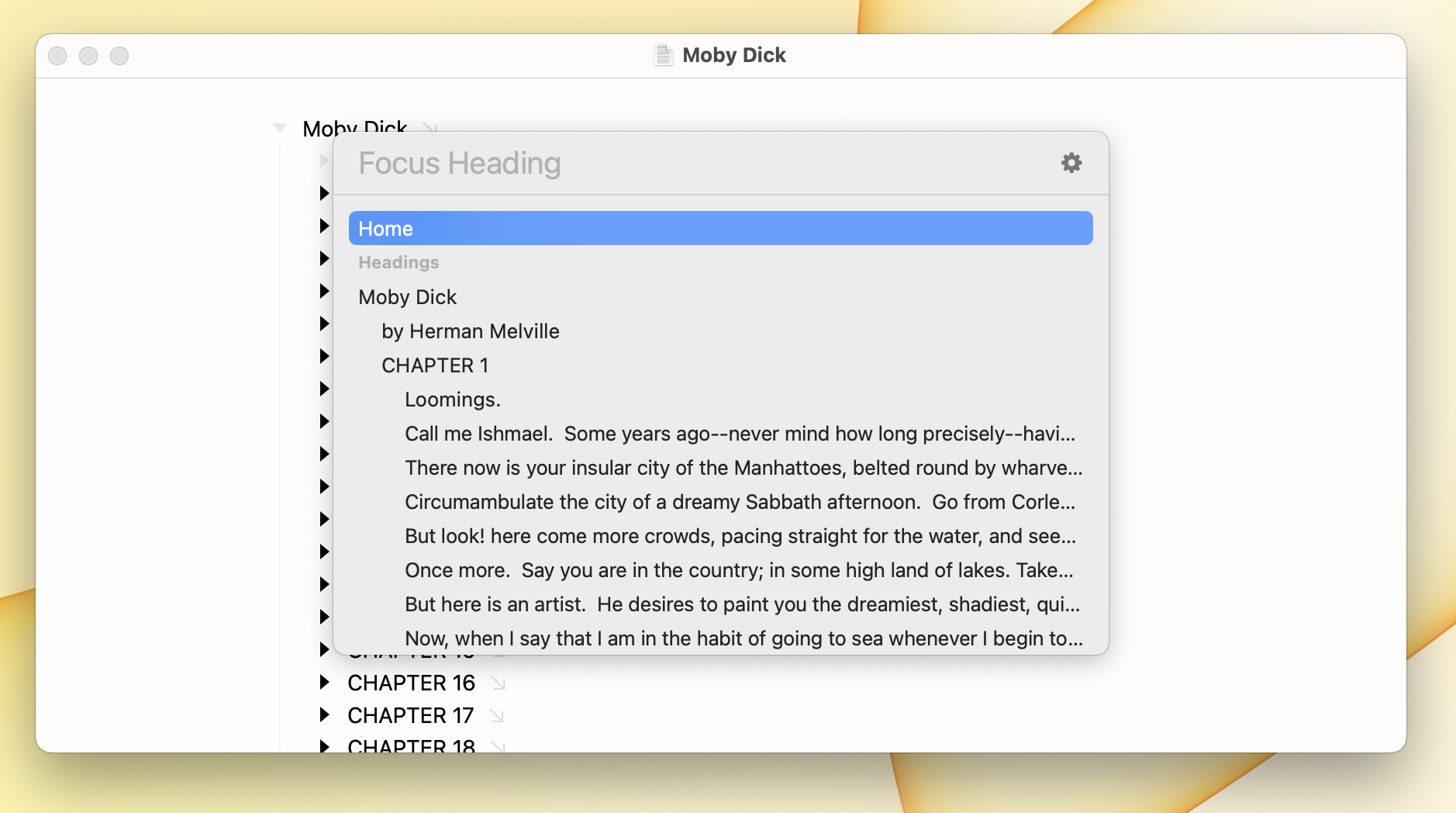
To make a choice
- Use the up and down arrow keys (or the mouse) to select an item
- Press Return to focus the selected item and close the choice box
- Press Command-Return to focus the item's parent and select the item instead, so you see it alongside its siblings
- Press Escape to close the choice box without selecting anything
To filter the available choices
Filtering is really fast, even in big outlines!
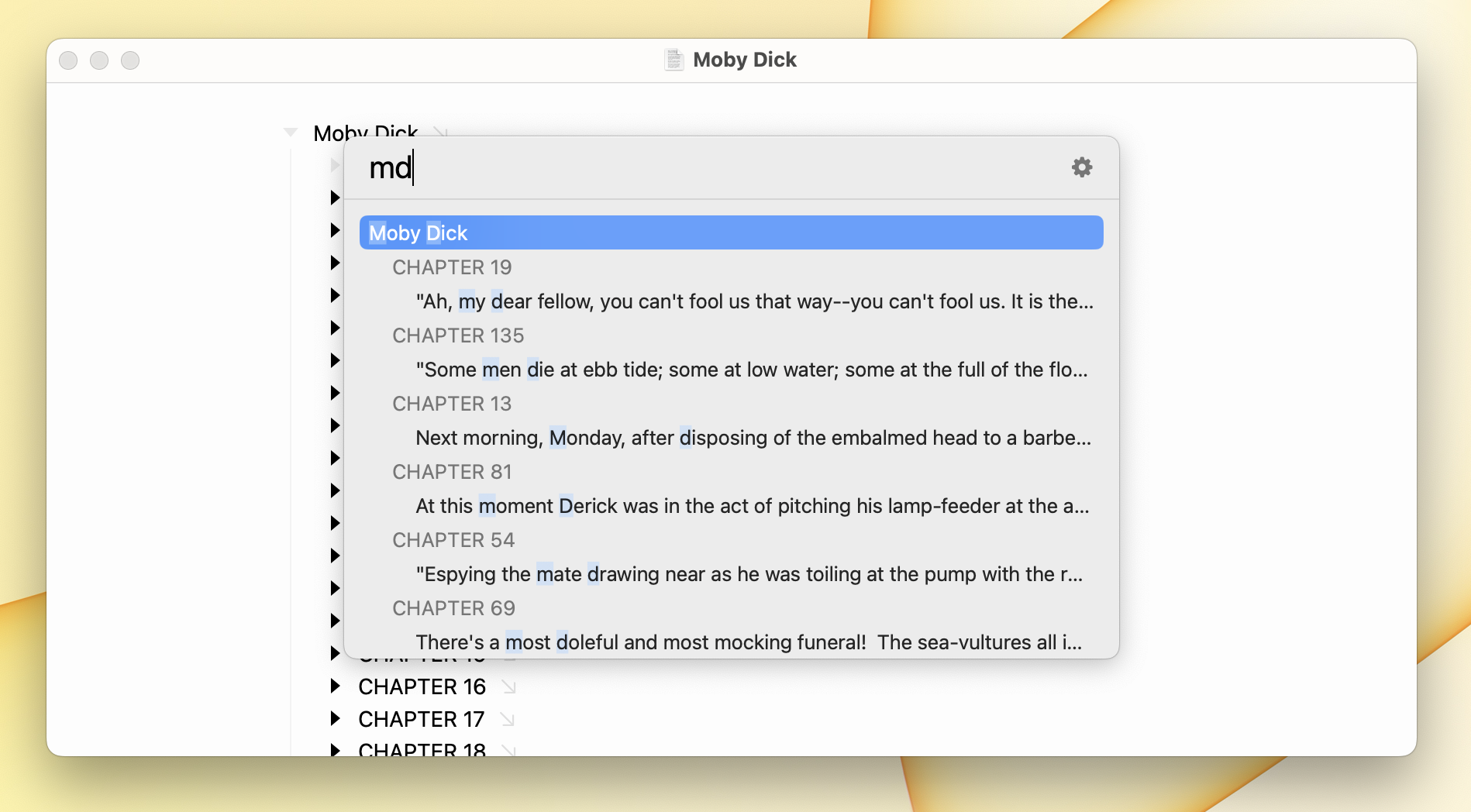
- Start typing to filter the list
- Filtering is "fuzzy". Matches must contain all the letters you type, in order, but they can have other letters in between.
- Results are always ordered by how well they match, with the best matches first.
- Acronym matching (the first letter of each word) works well when looking for shorter "topic" rows.
Results are a flat list. Each one shows its containing path as a breadcrumb, so you can tell matching rows apart even when they share the same text.
What You Can Search
By default the choice box lists your sidebar items, the same things you can jump to from the sidebar:
- Locations you've saved
- Index entries (your headings, by default)
- Pinned rows
- Saved Queries
You can change what you're searching by starting your text with a prefix. No space is needed after it:
- Type
-to search every row in your outline instead of just your sidebar items. This is how you jump to any row, anywhere. - Type
>to search every command in Bike, then run the one you choose. It's a quick way to find a command without hunting through the menus.
If you'd rather open straight into one of these, Bike has a separate command for each:
- Go > Go To… (Command-P): opens on your sidebar items, the default above.
- Go > Go to Row…: opens already searching every row (the same as typing
-). - Go > Go to Command… (Shift-Command-P): opens already searching every command (the same as typing
>).
Where the Choice Box Appears
Bike also uses the choice box for Format > Add Link to Row… (Command-Option-K), which lists every row in the current outline so you can pick the one to link to. See Outline Links.